Core Features

Understanding the Forecast View

Learn how to read and interpret Farline AI's forecast timeline, Gantt charts, and project insights to make data-driven decisions.

What is the Forecast View?

The Forecast View shows when your project will complete based on:

  • Team capacity (how much work teams can complete per week)
  • Work item sizes (how much work needs to be done)
  • Dependencies (which work must happen before other work)
  • Resource allocation (how capacity is shared across concurrent work)

Farline AI calculates a timeline showing exactly when each work item starts and finishes.

Components of the Forecast View

1. Project Definition Editor (Left Pane)

The text-based project definition showing:

  • Project name and settings
  • Workstreams (teams) and their capacity
  • Work items with sizes and dependencies
  • Scenarios for "what if" analysis

Purpose: Edit your project structure directly

2. Gantt Chart (Right Pane)

Visual timeline with:

  • Horizontal bars representing work items
  • Swimlanes for each workstream (team)
  • Dependencies shown as connecting lines
  • Time axis showing weeks or months

Purpose: See when work happens and how teams interact

3. Forecast Summary (Bottom)

Key insights including:

  • Project completion date
  • Total duration
  • Milestones and their dates
  • Critical path information (what affects the end date)

Purpose: Quick overview of project timeline

Reading the Gantt Chart

Time Axis

The horizontal axis shows time, typically in weeks. The chart runs from left (start) to right (end).

  • Start date: Usually "Week 0" or current date
  • End date: When the last work item completes
  • Week markers: Vertical lines show week boundaries

Swimlanes (Workstreams)

Each team gets its own horizontal lane (swimlane) in the chart. Teams are stacked vertically, one above the other.

Example layout:

  • Frontend Team (top swimlane)
  • Backend Team (middle swimlane)
  • QA Team (bottom swimlane)

Swimlane height: Proportional to workstream capacity

  • Larger teams = taller swimlanes
  • Smaller teams = shorter swimlanes

Purpose: Quickly identify team sizes and resource allocation

Work Item Bars

Colored horizontal bars show work items. Each bar represents one piece of work.

Bar properties:

  • Length: Duration based on size and capacity
  • Position: When work starts (left edge) and ends (right edge)
  • Color: Often color-coded by workstream
  • Label: Work item name appears on the bar

Example: If "Design UI" takes 2 weeks and "Build Components" takes 4 weeks, you'll see two bars - a shorter one followed by a longer one.

Dependencies

Lines or arrows connecting work items show dependencies.

How they appear:

  • Arrow points from prerequisite work to dependent work
  • Shows which work must finish before other work can start

Example: Backend API must finish before Frontend UI can start, shown as an arrow from API bar to UI bar.

Purpose: Visualize sequencing and handoffs

Concurrent Work

When a team works on multiple items at the same time, you'll see overlapping bars in the same swimlane.

What it means:

  • Team working on multiple items simultaneously
  • Capacity is shared between concurrent items
  • Each item progresses slower than if it had full capacity

Example: If a team works on Feature A and Feature B at the same time, both bars appear in the same time period but the team's capacity is split between them.

Understanding Project Duration

How Duration is Calculated

Formula: Duration = Work Size ÷ Effective Capacity

Example 1: Simple Sequential Work

workstream:
  capacity: 10
  work_items:
    - size: 30
    - size: 20
      dependencies: [first-item]
  • First item: 30 ÷ 10 = 3 weeks
  • Second item: 20 ÷ 10 = 2 weeks
  • Total: 5 weeks

Example 2: Parallel Work

workstream:
  capacity: 10
  work_items:
    - size: 40  # No dependency
    - size: 40  # No dependency
  • Both items share capacity: 10 ÷ 2 = 5 each
  • Each takes: 40 ÷ 5 = 8 weeks
  • Total: 8 weeks (parallel, not additive!)

Example 3: Cross-Team Dependencies

workstreams:
  - name: Design
    capacity: 5
    work_items:
      - id: mockups
        size: 15  # Takes 3 weeks

  - name: Engineering
    capacity: 15
    work_items:
      - id: build
        size: 45
        dependencies: [mockups]  # Starts after 3 weeks
  • Design completes: Week 3
  • Engineering starts: Week 3, ends Week 6
  • Total: 6 weeks

Critical Path

The critical path is the sequence of work items that determines the project end date.

Identifying the Critical Path

Items on the critical path:

  • Cannot be delayed without delaying the project
  • Have no slack time
  • Form a chain from start to finish

In charts: Often highlighted or shown differently

Example Critical Path:

infrastructure (2 weeks)

backend (4 weeks)  ← Critical

frontend (3 weeks) ← Critical

deployment (1 week) ← Critical

Total: 10 weeks

Non-critical work happens in parallel and finishes earlier.

Optimizing the Critical Path

Ways to reduce project duration:

  1. Increase capacity on critical path teams
  2. Reduce size of critical path work items
  3. Remove dependencies to enable parallelism
  4. Split work across multiple teams

Scenarios: "What If" Analysis

Scenarios let you explore alternatives without changing your baseline plan.

Creating Scenarios

Via Chat:

You: "Create a scenario where we add 2 more engineers"

Via Editor:

scenarios:
  - name: Baseline
    workstreams: [...]

  - name: More Engineers
    workstreams:
      - name: Engineering
        capacity: 17  # Was 15, now 17
        work_items: [...]

Comparing Scenarios

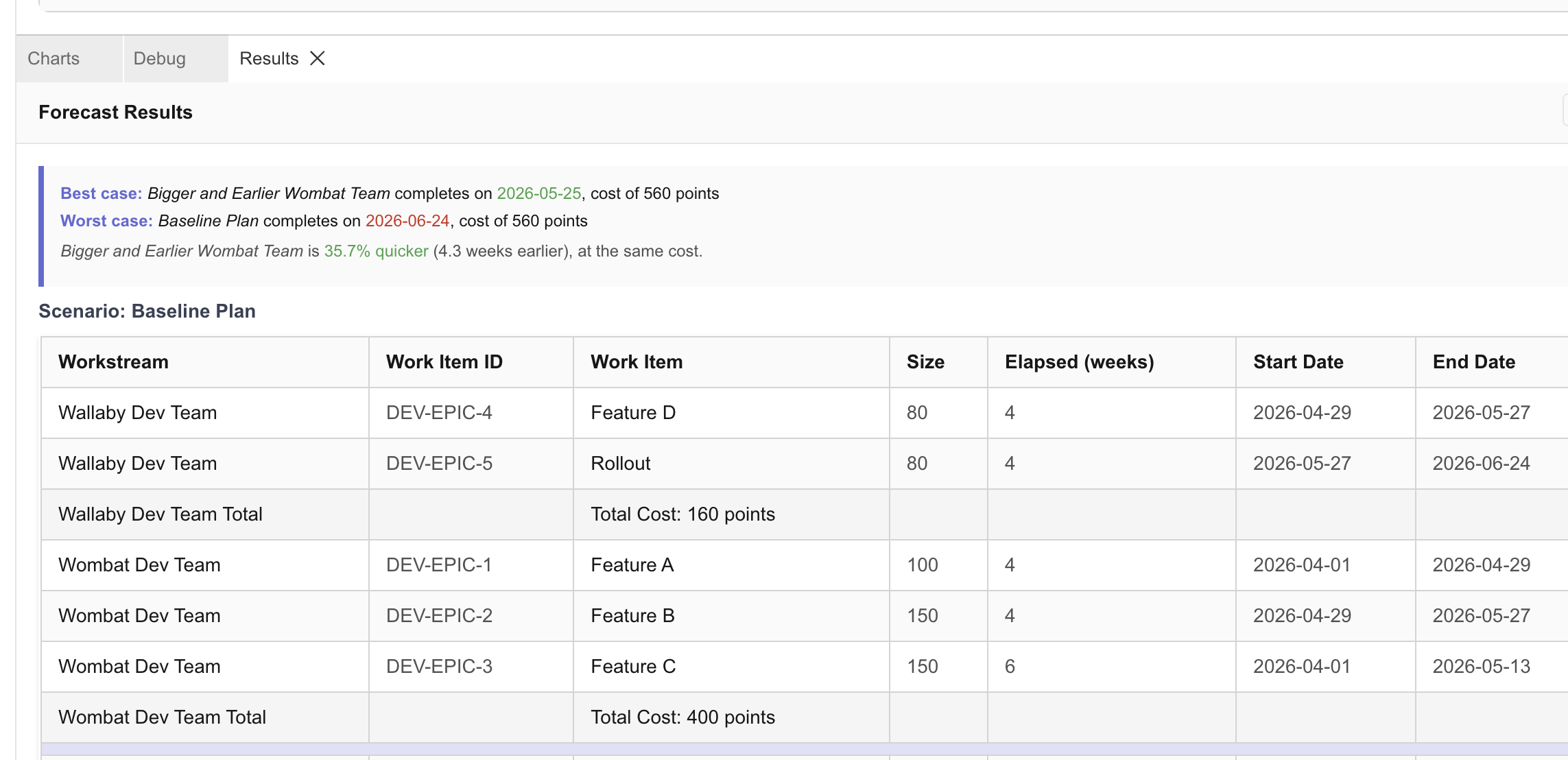
Farline AI shows each scenario's timeline:

Baseline: Completes Week 10 More Engineers: Completes Week 8.5 Savings: 1.5 weeks

Use scenarios to answer:

  • What if we cut feature X?
  • What if we hire more people?
  • What if work takes longer than estimated?
  • What if we delay the start date?

Common Patterns in Forecasts

The "Waiting" Pattern

What you see: Long gaps before work starts. A team has no work for several weeks, then suddenly becomes active.

Cause: Dependencies on other teams. The team is waiting for prerequisite work to complete.

Fix:

  • Reduce dependencies to allow parallel work
  • Add earlier work for this team so they're not idle
  • Consider if this team size is appropriate

The "Overload" Pattern

What you see: Many overlapping bars in the same swimlane. The team is working on 4+ items simultaneously.

Cause: Too much parallel work, capacity spread thin across many items. Each item progresses slowly.

Fix:

  • Add dependencies to sequence work (do one thing at a time)
  • Increase team capacity
  • Use concurrency limits to reduce multitasking

The "Bottleneck" Pattern

What you see: One team's work determines the project end date. Other teams finish early and sit idle while this team continues working.

Example: Team A finishes in 2 weeks, Team B in 6 weeks, but Team C takes 12 weeks. The project completes in 12 weeks because of Team C.

Cause: Team C has high utilization or too much work assigned.

Fix:

  • Increase Team C capacity (add more people)
  • Reduce Team C's work (reassign to other teams)
  • Check if Team C's estimates are realistic

The "Early Finish" Pattern

What you see: A team finishes their work long before the project ends. They sit idle for weeks.

Example: Team A completes all work in 6 weeks, but the project takes 10 weeks due to other teams.

Cause: Team A is not on the critical path. Their work doesn't affect the project end date.

Options:

  • Reduce Team A size (they're over-resourced)
  • Assign Team A more work
  • Accept the idle time (may be appropriate for specialists)

Milestones

Milestones mark important project dates.

Reading Milestones

Milestones appear as vertical markers on the timeline, often shown with a diamond symbol or label.

Example: Your timeline might show "MVP" at Week 5 and "Launch" at Week 10.

Purpose: Track progress toward key dates and major deliverables

Milestone Completion

Milestones complete when their dependent work finishes:

milestones:
  - name: MVP Complete
    depends_on:
      - mvp-feature-1
      - mvp-feature-2

Milestone date: When ALL dependent work items complete

Interpreting Forecast Insights

Completion Date

"Your project will complete on [DATE]"

What it means:

  • Last work item finishes on this date
  • Assumes capacity and estimates are accurate
  • Assumes no delays or interruptions

Confidence level:

  • High confidence if based on historical velocity
  • Lower confidence for new teams or uncertain work

Team Utilization

"Frontend Team: 85% utilized"

What it means:

  • Team has work 85% of the time
  • 15% idle time (waiting for dependencies or between items)

Ideal utilization: 80-90%

  • Too low (under 60%): Team underutilized, could do more
  • Too high (over 95%): No buffer for delays

Slack Time

"This work item has 2 weeks of slack"

What it means:

  • Can be delayed 2 weeks without affecting project end date
  • Not on critical path
  • Buffer for delays or uncertainties

Tips for Better Forecasts

Use realistic capacity: Based on historical data, not wishful thinking

Account for overhead: Meetings, reviews, context-switching reduce effective capacity

Add buffer: Multiply estimates by 1.2-1.5x for unknowns

Review dependencies: Too many create bottlenecks, too few might be unrealistic

Validate with team: Do the dates and durations look reasonable?

Update regularly: As work progresses, update sizes and capacity

Use scenarios: Explore optimistic, realistic, and pessimistic cases

Troubleshooting Forecasts

Timeline too long?

  • Increase team capacity
  • Reduce work item sizes or scope
  • Remove bottlenecks (sequential dependencies)
  • Add parallelism

Timeline too short?

  • Double-check work item sizes (are they realistic?)
  • Verify capacity matches actual team size
  • Add missing work items or dependencies

Teams finish at very different times?

  • Rebalance work across teams
  • Adjust team sizes (capacity)
  • Consider cross-functional teams

Too much idle time?

  • Add more work items
  • Reduce team size
  • Combine teams

Last updated: 2025-12-19