Quick Start: 5-Minute Guide
Get your first project plan created in 5 minutes or less. This fast-track guide skips the details and gets you started immediately.
Your Goal
By the end of this guide, you'll have:
- ✅ A complete project plan with timeline
- ✅ Multiple teams (workstreams) working in parallel
- ✅ Work items with dependencies
- ✅ A visual Excalidraw forecast chart showing when work will complete
Time required: 5 minutes
Step 1: Sign In (30 seconds)
- Go to farline.ai
- Click Sign In or Get Started
- Sign in with your account
You'll land on the main app with a chat interface ready to go.
Step 2: Describe Your Project Plan (1 minute)
Chat with the AI to set up your project plan basics. Here's a template you can copy and paste:
I'm planning a [PROJECT TYPE] project called [PROJECT NAME] starting on [START DATE].
I'm using [UNITS] as the unit for my teams and work items.
Example:
I'm planning a website redesign project called Modern Website Refresh starting on the 3rd of March 2026.
I'm using people weeks and the unit for my teams and work items.
The AI will confirm and ask about your teams.
Step 3: Define Your Teams (1 minute)
Tell the AI about your workstreams (teams) and how many people are on each.
Template:
We have [NUMBER] teams:
- [TEAM NAME]: [NUMBER] people
- [TEAM NAME]: [NUMBER] people
- [TEAM NAME]: [NUMBER] people
Example:
We have 3 teams:
- Design: 2 people
- Engineering: 5 people
- QA: 2 people
Step 4: List the Work (1 minute)
Describe the major work items each team needs to do.
Template:
The work items for each team are:
Design: [WORK ITEM] size [X], [WORK ITEM] size [Y]
Engineering: [WORK ITEM] size [X], [WORK ITEM] size [Y], [WORK ITEM] size [Z]
QA: [WORK ITEM] size [X], [WORK ITEM] size [Y]
Example:
The work items for each team are:
Design: Create new design system - size 6, Design key pages - size 10
Engineering: Update frontend components - size 12, Rebuild navigation - size 4, Integrate CMS - size 2
QA: Write test plan- size 1, Run regression testing - size 3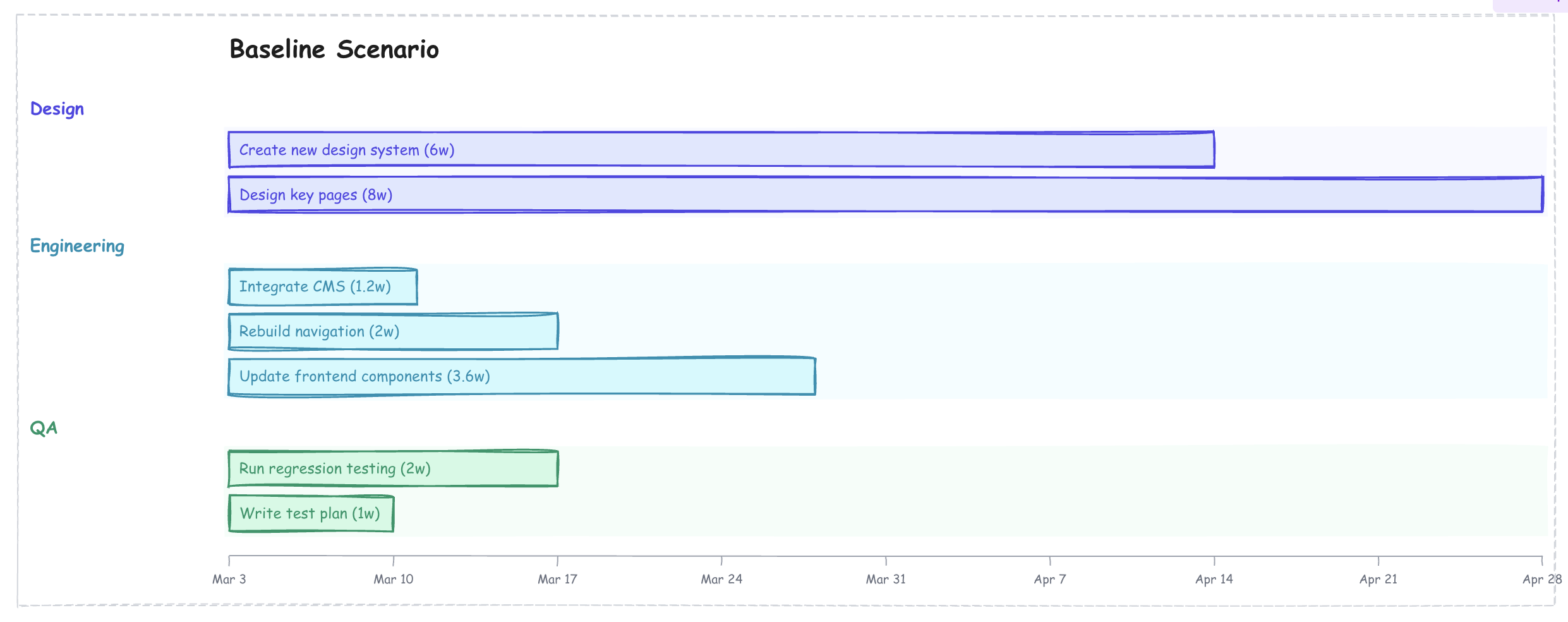
Step 5: Add Dependencies (30 seconds)
Tell the AI which work must happen before other work.
Example:
Engineering should wait for the1 design system to be complete.
Run regression testing should wait for all engineering work to finish.
Update frontend components can only start after rebuild navigation
Write test plan work item depends on the Design key pages work item
Step 6: Add Key Milestones (30 seconds)
Tell the AI which milestones you care about.
Example:
Create a milestone called "CMS Ready" when Integrate CMS is complete.
Create a milestone called "Ready to Launch" when Run Regression Testing is complete.
Step 7: Review Your Timeline (1 minute)
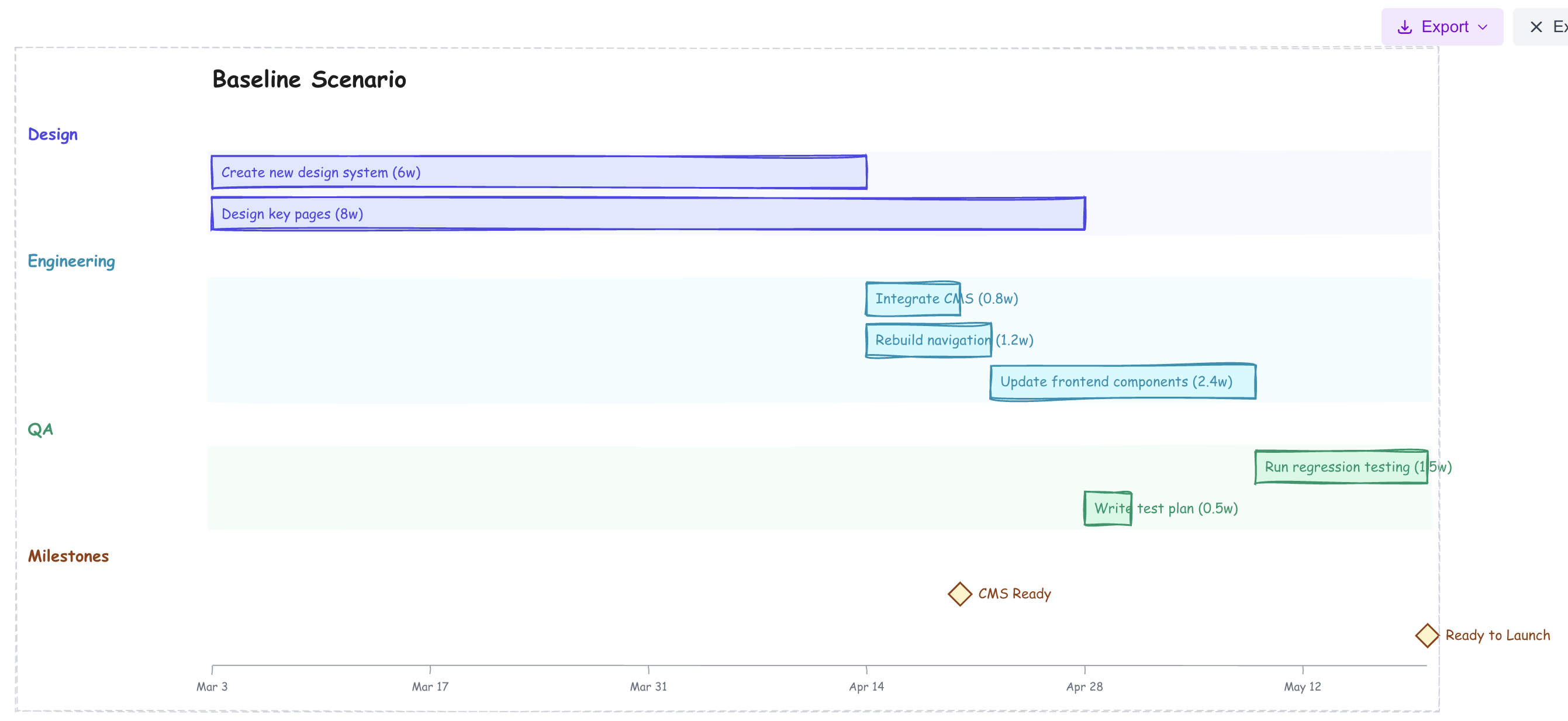
The AI project builder generates your project plan forecast! Look at:
Project Plan Definition Editor (left side):
- Shows your project plan definition in text format
- Edit directly if you want to make changes
Project Plan Forecast Chart (right side):
- Visual Excalidraw-style timeline of your project plan
- Each work item on its own row, grouped by workstream
- Color-coded bars with duration labels
- Milestones shown as diamond markers
Forecast (bottom):
- Shows when your project plan will complete
- Lists milestones and key dates
Step 8: Try a "What If" Scenario (1 minute)
Ask the AI to explore alternatives:
Try asking:
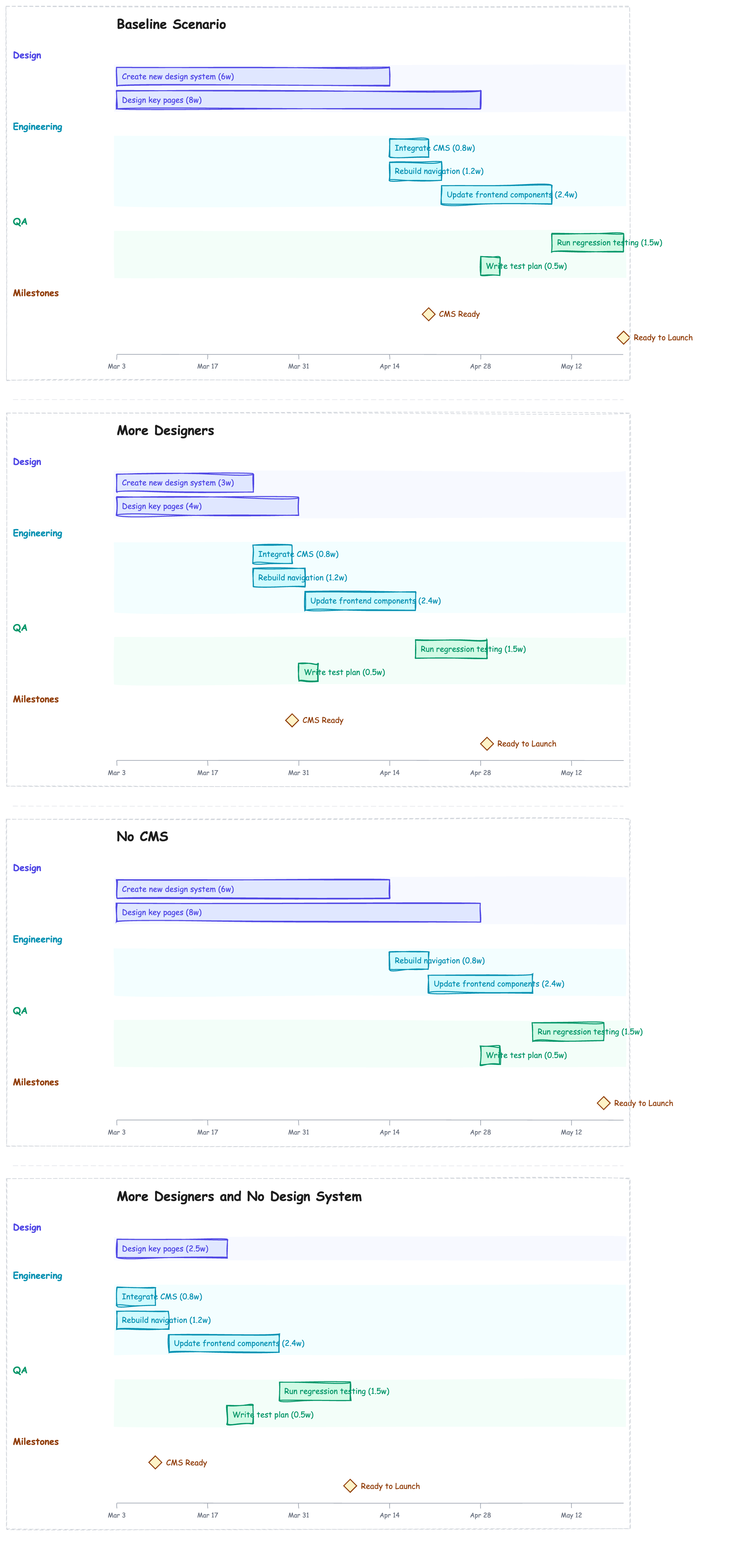
Duplicate the baseline scenario, call it "More Designers".
Add 2 more people to the Design team of that scenario.
Duplicate the baseline scenario, call it "No CMS".
Remove the CMS Integration work item and CMS Ready Milestone from that scenario.Duplicate the "More Designers" scenario, call it "More Designers and No Design System".
Remove Create New Design System work item from the last Scenario.The AI will create a new scenario showing the impact! If you try all three you will see 4 scenarios in total. You can also see in the Results tab an analysis of the effort/cost and elapsed time of all scenarios.
Step 9: Review Your Results (1 minute)
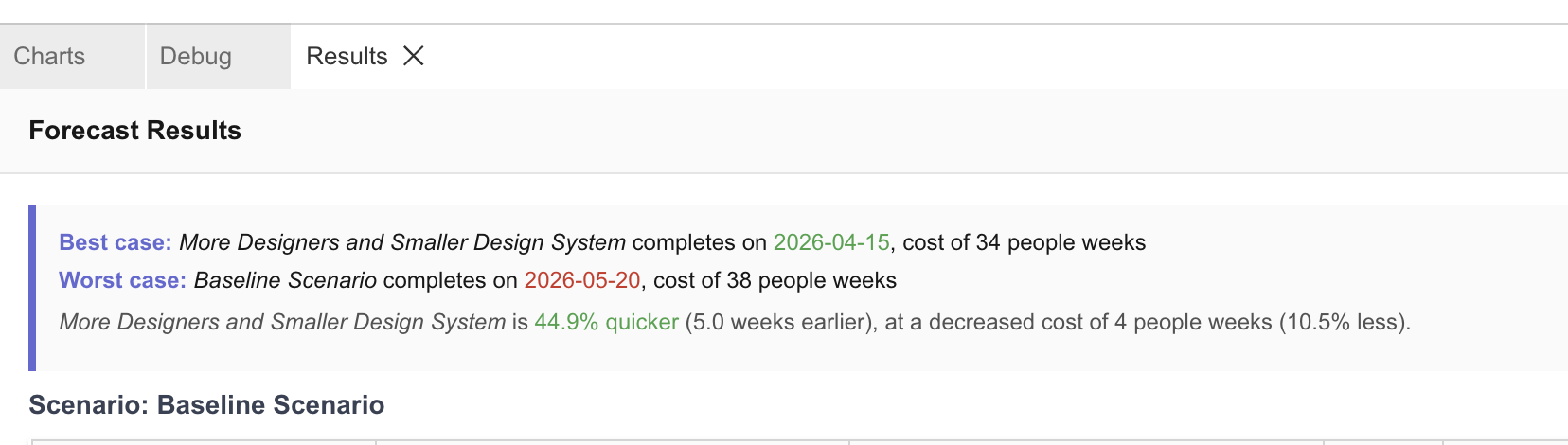
The Results tab will provide an executive overview of the best and worst case scenario, comparing costs and elapsed time.
You're Done!
Congratulations! You've created your first project plan with Farline AI in under 5 minutes.
What You've Learned
✅ How to start a project with the AI project builder ✅ How to define teams and work items ✅ How to add dependencies between work ✅ How to read a project forecast chart ✅ How to explore "what if" scenarios
Next Steps
Explore More:
- Try editing the project plan definition directly to make changes
- Create multiple scenarios to compare approaches
- Export your charts to share with stakeholders
- Import from Jira if you have existing projects
Learn More:
- Creating Your First Project Plan - Detailed walkthrough
- Using the AI Project Builder - Master the AI project builder
- Using the Advanced Editor - Learn the project plan definition syntax
- Visualizing Projects with Charts - Chart options and export
- Budgeting and Cost Analysis - Add unit costs and budgets to track spend across scenarios
Troubleshooting
Chart looks too long? Ask the AI: "Can you make the teams bigger?" or "Can we work on more things in parallel?"
Work items in wrong order? Add dependencies: "X should wait for Y to complete"
Need to make changes? Just keep chatting! Say "Can you change..." or "What if we..."
Want to start over? Click the project dropdown → New Project
Tips for Success
- Keep it simple: Your first project can be basic. Complexity comes later.
- Think big chunks: Focus on features/epics, not individual tasks
- Iterate fast: Ask the AI to adjust things until it looks right
- Try scenarios: Use "what if" questions to explore options
- Export early: Download your project before making big changes
Related Articles
- Getting Started with Farline AI - Complete beginner's guide
- Creating Your First Project - Step-by-step tutorial
- Working with Work Items - Deep dive on work items
- Managing Workstreams and Dependencies - Team and dependency strategies
- Exporting and Importing Sessions - Save and share your work
Last updated: 2025-12-19