Understanding Usage and Limits
Farline AI uses a tier-based system to manage resources and ensure a great experience for all users. This guide explains how usage tracking works and what to do when you approach your limits.
Viewing Your Usage
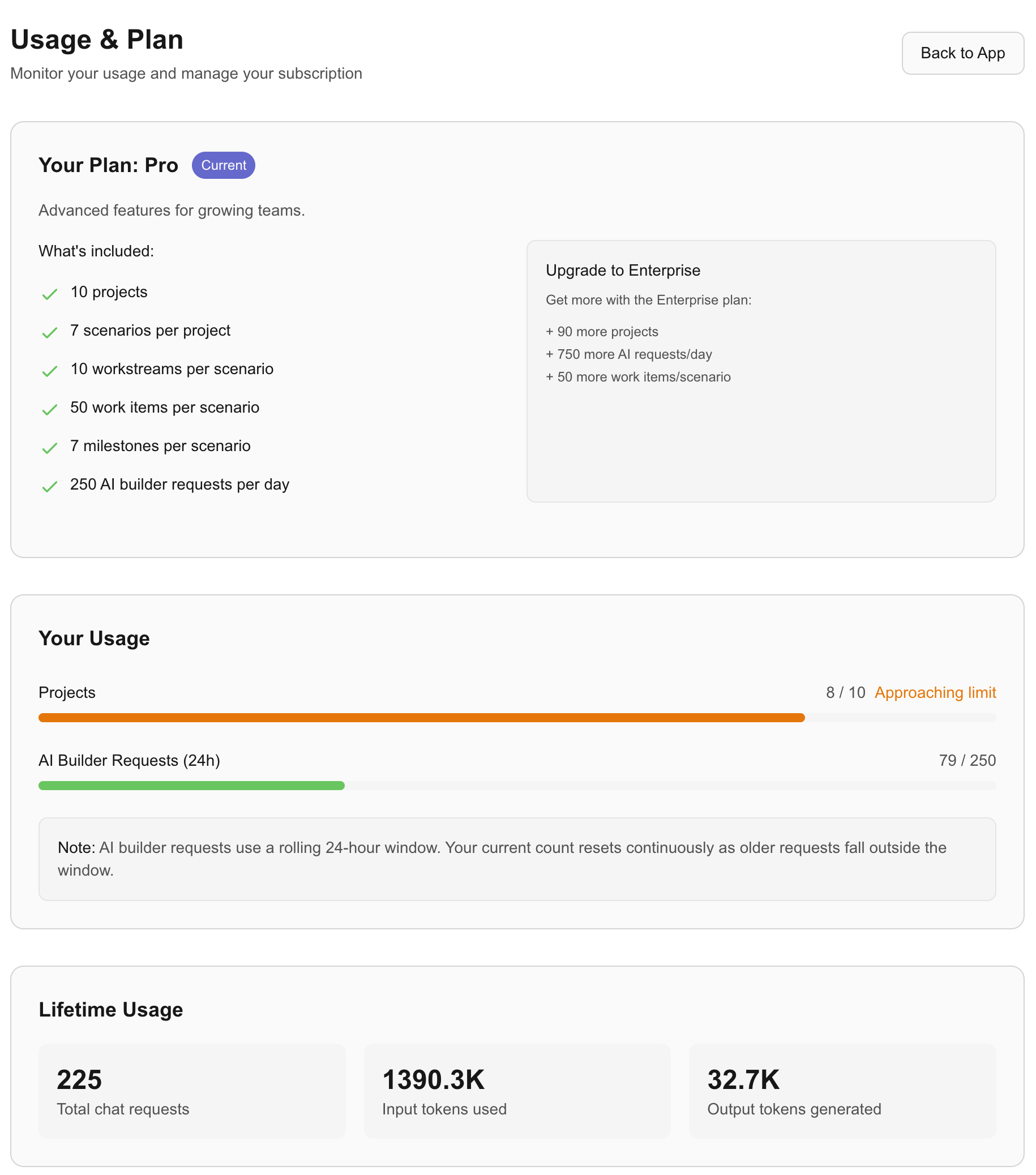
To see your current usage and plan details:
- Open the app
- Navigate to the Usage & Plan page
- View your current usage against your tier limits
The usage page shows:
- Your Plan: Details about what's included in your current tier
- Your Usage: Real-time progress bars for key metrics
- Lifetime Stats: Total usage since you joined
Understanding Your Limits
Account Limits
These limits apply to your entire account:
| Metric | What It Means |
|---|---|
| Projects | Total number of projects you can create |
| AI Builder Requests (24h) | Number of AI-powered chat messages you can send in a rolling 24-hour window |
Per-Project Limits
These limits apply within each individual project:
| Metric | What It Means |
|---|---|
| Scenarios | Number of "what-if" scenarios you can create |
| Workstreams | Number of teams or work tracks per scenario |
| Work Items | Number of tasks or deliverables per scenario |
| Milestones | Number of milestone markers per scenario |
Tier Comparison
Farline AI offers several tiers to match your needs:
| Feature | Free | Standard | Pro | Enterprise |
|---|---|---|---|---|
| Projects | 1 | 3 | 10 | 100 |
| Scenarios/project | 3 | 5 | 7 | 15 |
| Workstreams/scenario | 3 | 5 | 10 | 30 |
| Work items/scenario | 10 | 25 | 50 | 100 |
| Milestones/scenario | 3 | 5 | 7 | 15 |
| AI requests/day | 50 | 100 | 250 | 1,000 |
How Limits Work
Rolling 24-Hour Window
AI builder requests use a rolling window rather than a fixed daily reset. This means:
- Requests fall off the counter 24 hours after they were made
- You don't have to wait until midnight for a reset
- Usage gradually decreases as older requests age out
Example: If you made 10 requests at 2 PM yesterday, those 10 will be removed from your count at 2 PM today.
Approaching Limits
When you're at 80% of a limit, the usage page shows a warning indicator. This gives you time to:
- Complete critical tasks before hitting the limit
- Consider upgrading if you need more capacity
- Plan your usage for the rest of the day
At Your Limit
When you reach a limit:
- Projects: You can't create new projects until you delete one or upgrade
- AI Builder: Requests will be rejected until older requests fall outside the 24-hour window
- Per-project limits: You can't add more items until you remove some or upgrade
What To Do When You Hit a Limit
Option 1: Wait for the Window to Reset
For AI builder requests, simply wait a few hours. As your older requests age past 24 hours, they'll be removed from your count automatically.
Option 2: Remove Existing Items
If you've hit a project or per-project limit:
- Review your existing items
- Delete any that are no longer needed
- You'll immediately have capacity for new items
Option 3: Upgrade Your Plan
If you consistently need more capacity, consider upgrading to a higher tier. Benefits include:
- More projects and scenarios for complex planning
- Higher AI builder limits for intensive work sessions
- More workstreams and work items per scenario
Rate Limiting
To ensure system stability and prevent abuse, Farline AI also enforces:
- 1 request per second: Brief pause between AI builder requests
- 2 concurrent requests: Maximum simultaneous requests per user
If you're sending requests too quickly, you'll receive a "Too many requests" message. Simply wait a moment and try again.
Token Usage (For Reference)
The usage page also shows your lifetime token usage. Tokens are the units AI models use to process text:
- Input tokens: The text you send (your messages, project context)
- Output tokens: The AI's responses
This is shown for transparency and doesn't directly affect your limits. Your daily limit is based on request count, not tokens.
Tips for Efficient Usage
Batch Your Requests
Instead of asking the AI many small questions, combine related requests:
Less efficient: "Add work item A" → "Add work item B" → "Add work item C"
More efficient: "Add three work items: A, B, and C"
Use the Project Definition Editor
For bulk changes, editing the project definition directly is faster and doesn't consume AI requests:
- Have the AI create your basic structure
- Switch to the project definition editor for fine-tuning
- Ask the AI only when you need help
Clean Up Unused Projects
Periodically review your projects and delete any you no longer need. This keeps your account organized and frees up capacity.
Beta Period Note
During the beta period, all approved users receive Standard tier benefits for free. This lets you experience enhanced limits while we refine the product.
Related Articles
- Using the AI Project Builder - Get the most out of AI-powered planning
- Managing Project Settings - Organize your projects effectively
Last updated: 2026-01-27