Common Issues and Solutions
Quick solutions to the most common issues users encounter with Farline AI.
AI Project Builder Issues
AI Not Responding
Symptoms:
- Chat appears to hang
- "Thinking..." message doesn't complete
- No response after sending message
Solutions:
-
Check your internet connection
- Ensure you're online
- Try refreshing the page
-
Wait a moment
- Complex projects can take 10-20 seconds to process
- Large project definition generation requires more time
-
Refresh the page
- Press Ctrl+R (Cmd+R on Mac)
- Your project should auto-save and reload
-
Try a simpler request
- Break complex requests into smaller steps
- Example: Instead of "Create a complete project with 5 teams and 20 work items", try "Create a project with 2 teams"
AI Generates Invalid Project Definition
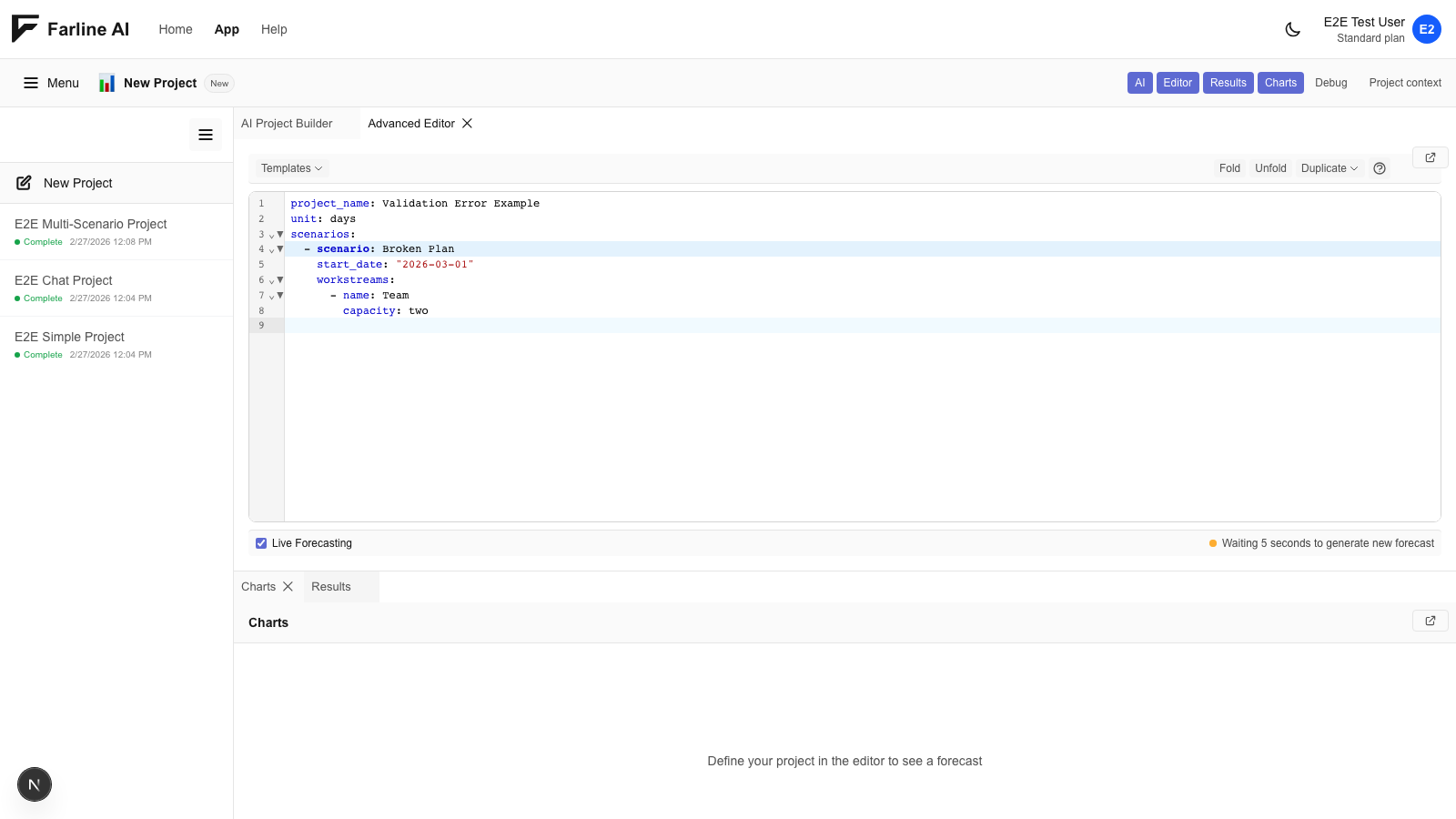
Symptoms:
- Error message: "Invalid YAML syntax"
- Charts don't update after AI response
- Red error indicators in project definition editor
Solutions:
-
Ask AI to fix it
You: "The project definition has errors. Can you fix it?" -
Check for common YAML mistakes
- Indentation issues (YAML uses spaces, not tabs)
- Missing colons after field names
- Mismatched brackets or quotes
-
Start fresh
- Create a new project
- Rebuild step-by-step with AI assistance
-
Manually fix in editor
- Click into the project definition editor
- Fix syntax errors (hover over red underlines for hints)
- Charts update automatically when valid
AI Misunderstands My Request
Symptoms:
- AI creates wrong work items or teams
- Incorrect sizes or dependencies
- Project doesn't match what you described
Solutions:
-
Be more specific
- Instead of: "Add some engineering work"
- Try: "Add a work item called 'Build API' with size 30 to the Backend team"
-
Correct the AI
You: "No, make the size 40 instead of 30" You: "Remove that work item and add a different one" -
Review the project definition
- Check what the AI actually created
- Provide feedback on specific issues
-
Edit the project definition directly
- Sometimes faster to fix small issues manually
Project Definition Issues
Changes Don't Appear in Charts
Symptoms:
- Edit the project definition but charts don't update
- Changes seem to disappear
Solutions:
-
Check for YAML syntax errors
- Look for red underlines or error messages
- Fix syntax issues first
-
Save explicitly
- Farline AI auto-saves, but try clicking out of the editor
- Refresh the page to ensure changes persist
-
Verify the change was made
- Sometimes edits are in wrong location in the project definition
- Use Ctrl+F (Cmd+F) to find the item you're editing
Work Items Not Showing
Symptoms:
- Created work item doesn't appear in chart
- Missing from timeline
Solutions:
-
Verify work item has required fields
work_items: - id: my-item # Required name: My Item # Required size: 10 # Required (must be > 0) -
Check if it's under a workstream
- Work items must be nested under a workstream
- Ensure indentation is correct
-
Verify size is > 0
- Items with size 0 don't show in charts
-
Look for dependency issues
- If depends on non-existent item, might not render
Dependencies Not Working
Symptoms:
- Work items start at wrong time
- Dependencies don't seem to affect order
Solutions:
-
Check dependency IDs
dependencies: - api-endpoints # Must match exact ID, not name -
Verify dependency exists
- Dependency must reference an existing work item ID
- Can reference items in other workstreams
-
Check for circular dependencies
- Item A depends on B, B depends on A = circular (invalid)
- AI should catch this, but manual edits might create it
Chart Issues
Chart Not Displaying
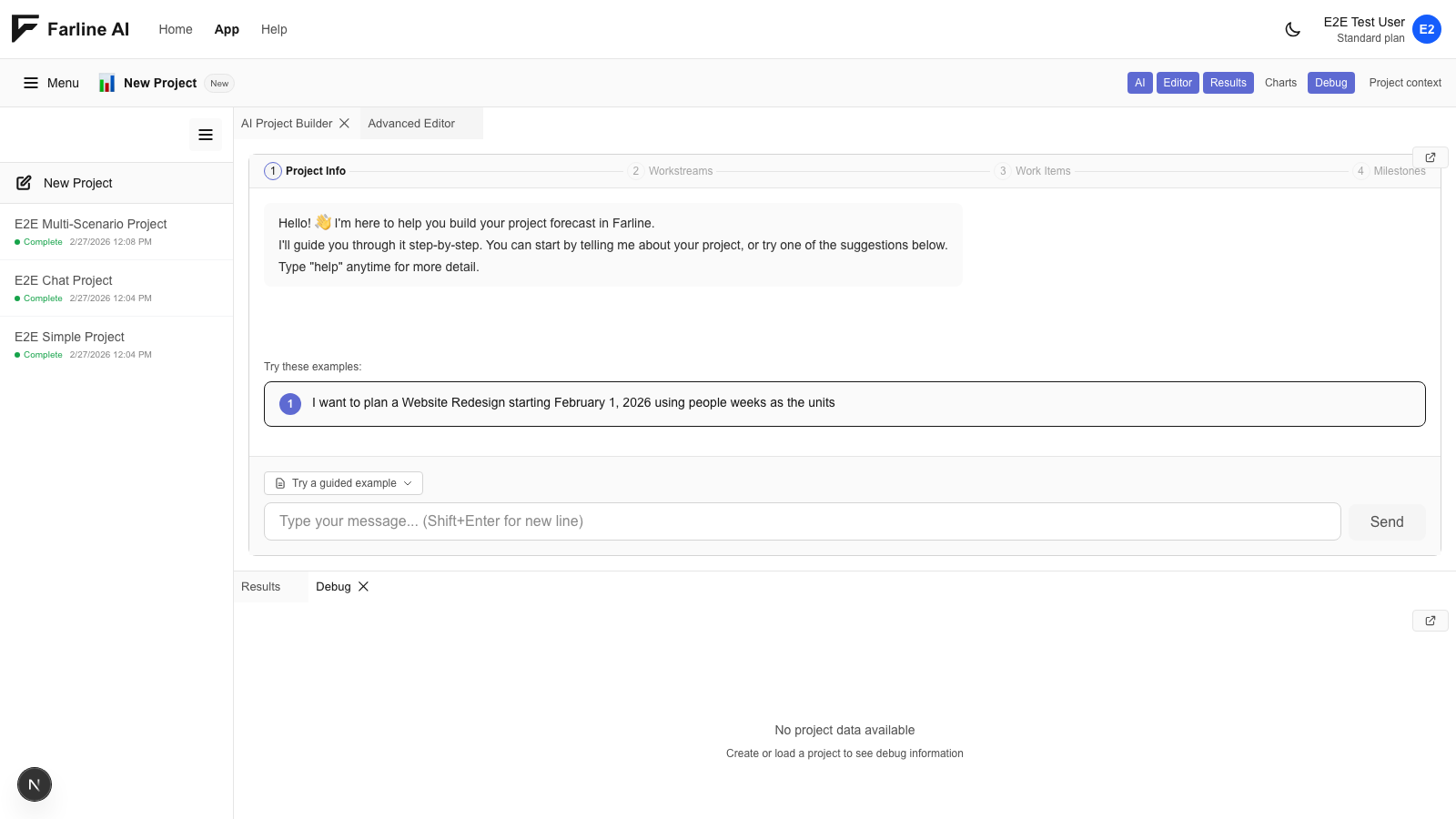
Symptoms:
- Blank chart area
- Charts fail to load
Solutions:
-
Check for valid project data
- Ensure at least one scenario exists
- Verify workstreams have work items
-
Try different chart type
- Switch between Excalidraw, Mermaid, and DayPilot
- One might work if the other fails
-
Refresh the page
- Clear any rendering issues
- Charts regenerate on load
Data Issues
Project Not Saving
Symptoms:
- Changes disappear after refresh
- "Unable to save" error
Solutions:
-
Check connection
- Ensure you're signed in
- Check your internet connection
-
Try incognito/private mode
- Rules out extension conflicts
- Tests with fresh storage
-
Contact support
- Email support@farline.ai with details of the issue
Getting More Help
If these solutions don't resolve your issue, email support@farline.ai and include:
- Description of the issue
- Steps to reproduce
- Screenshots if helpful
- Browser and OS version
Related Articles
- Contact Support - Get help from our team
- Using the AI Project Builder - Master the AI project builder
Last updated: 2026-02-11