2-Way Sync with Jira
This article explains how to sync Farline AI with Jira using 2-way integration: import epics as work items with custom field mapping, then export forecasted dates back to keep your plans and execution tools in sync.
What gets imported
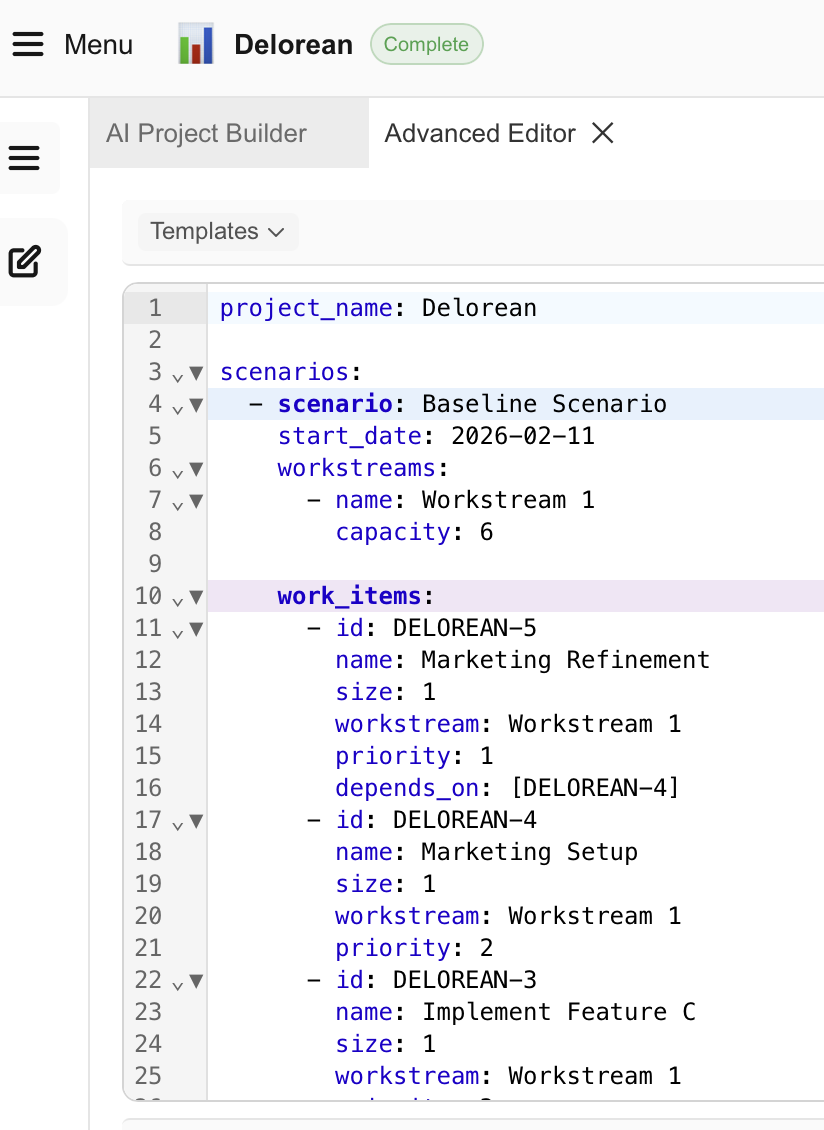
When you import from Jira, Farline AI creates a new project plan with:
- Project name: your Jira space name
- Scenario:
Baseline Scenario - Workstreams: auto-created from mapped workstream field, or a single default workstream with capacity of
6 - Each selected Jira epic becomes a work item (ID matches the epic key, e.g.
PROJ-123) - Dependencies are preserved from Jira Blocks relationships
- Size values from your mapped story points field (defaults to
1if not mapped) - Start date from the earliest mapped epic start date (defaults to today if not mapped)
How to import (step-by-step)
- Open the Farline AI app.
- Click
Menu>Import>From Jira.
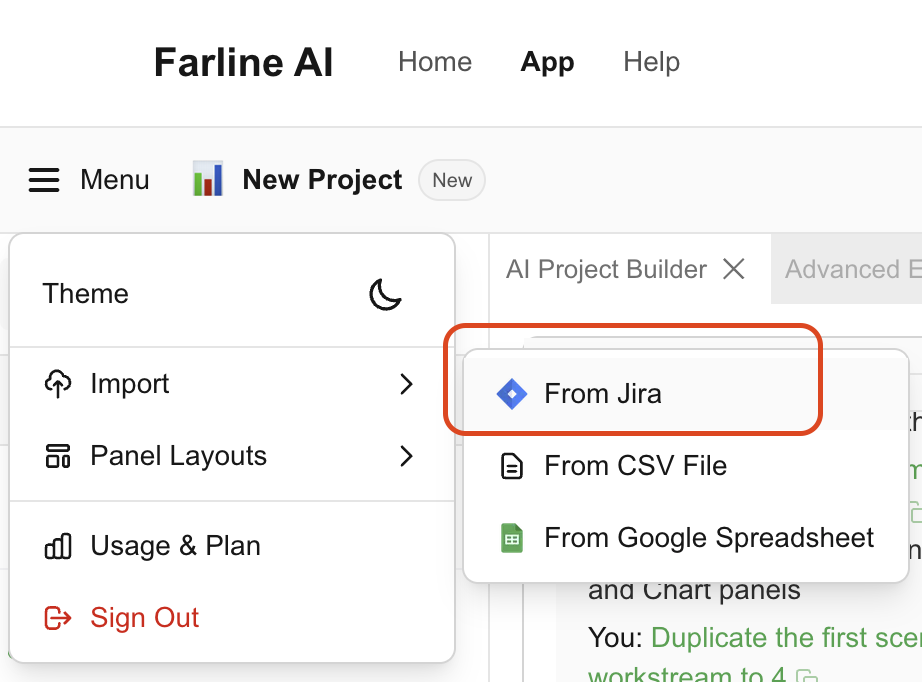
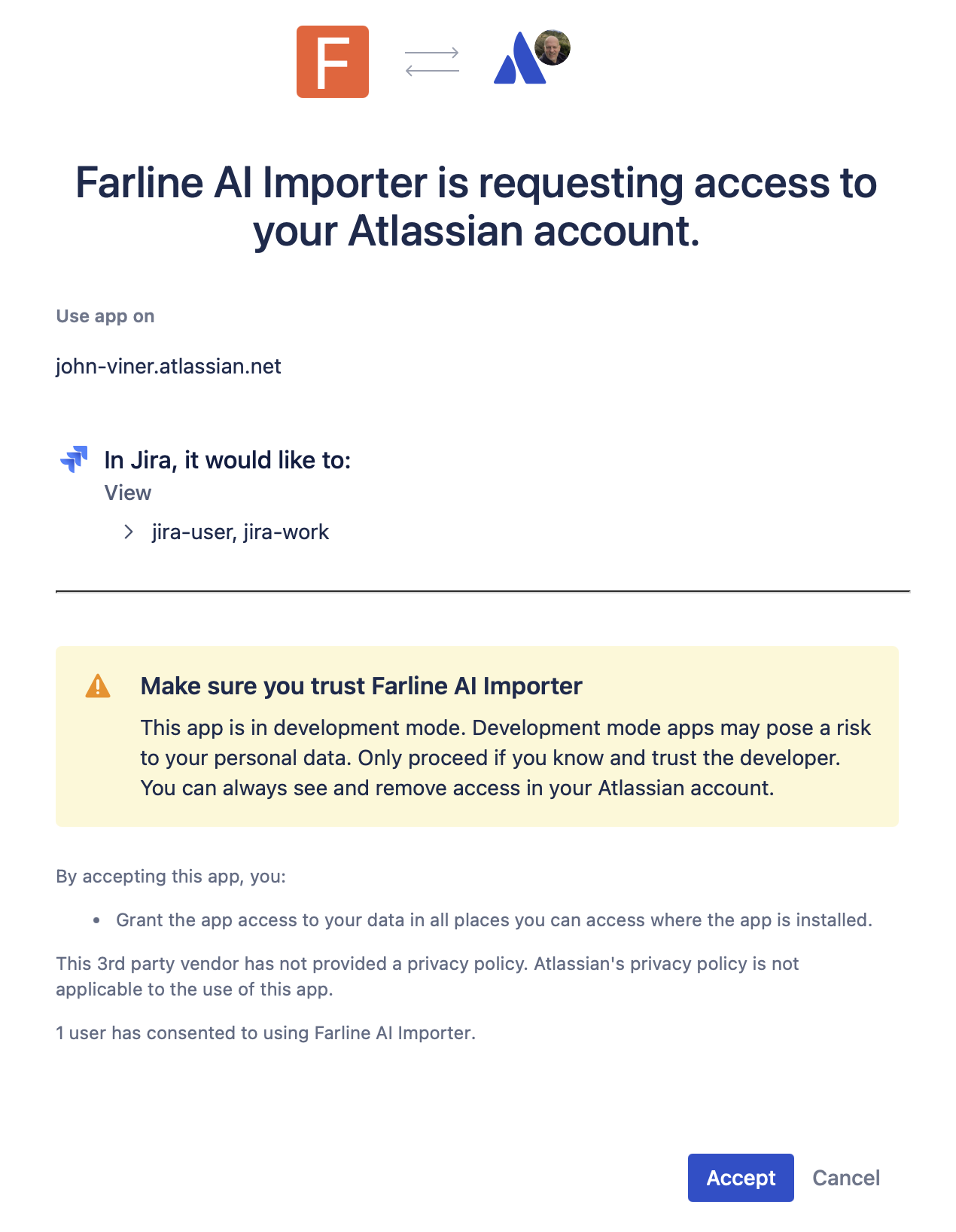
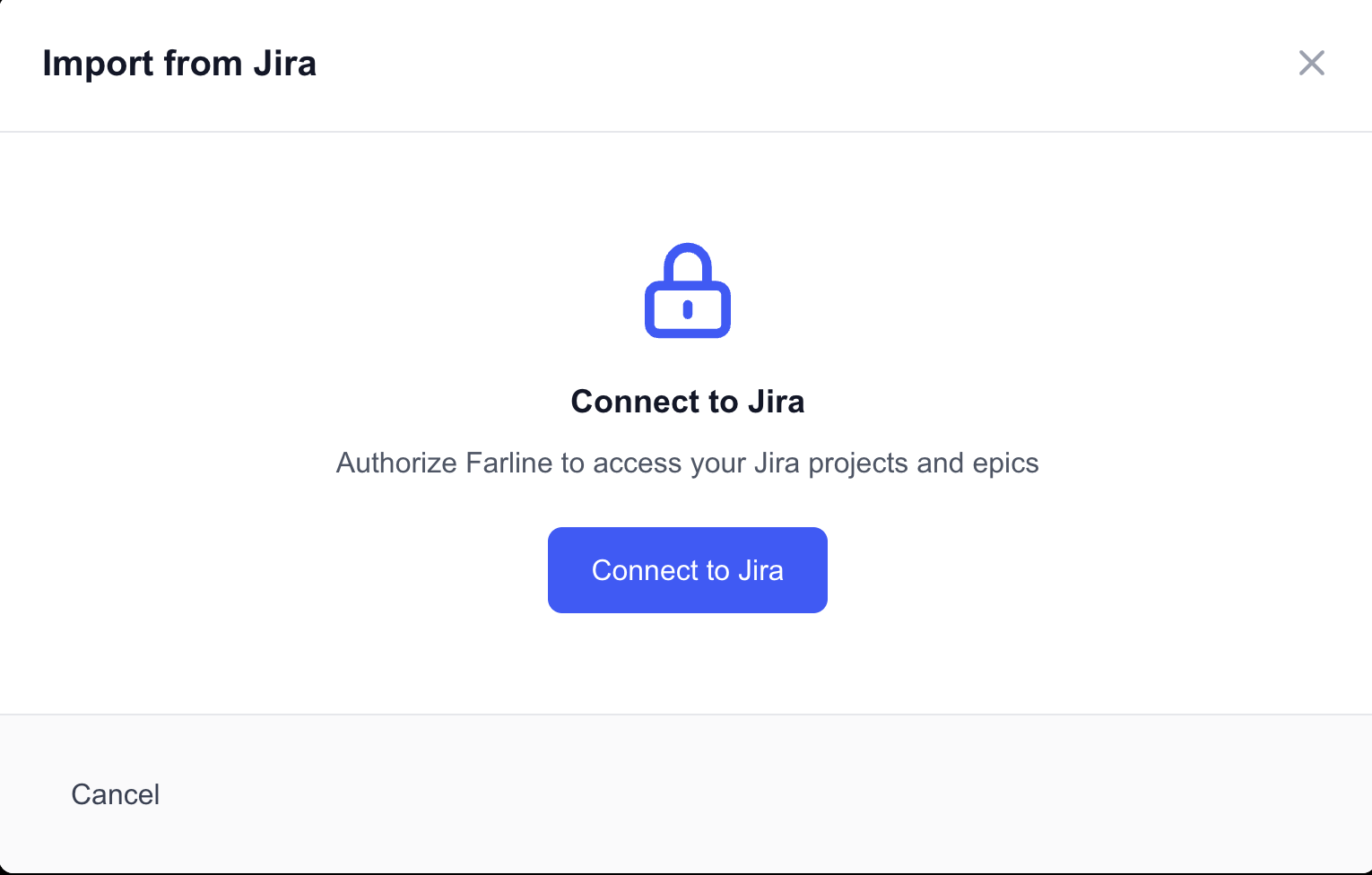
- The Jira import dialog opens. Click Connect to Jira to authorize Farline AI with Atlassian.
-
Select the Jira space you want to import from.
-
Map fields (optional): Map your Jira custom fields to Farline properties:
- Size / Story Points - a numeric field for work item sizing
- Workstream / Team - a text field to auto-create workstreams
- Start Date - a date field for project start date calculation
Your field mapping preferences are saved and pre-filled on the next import.
-
Select the epics you want to import. Mapped fields (size, workstream) are shown in the epic list for reference.
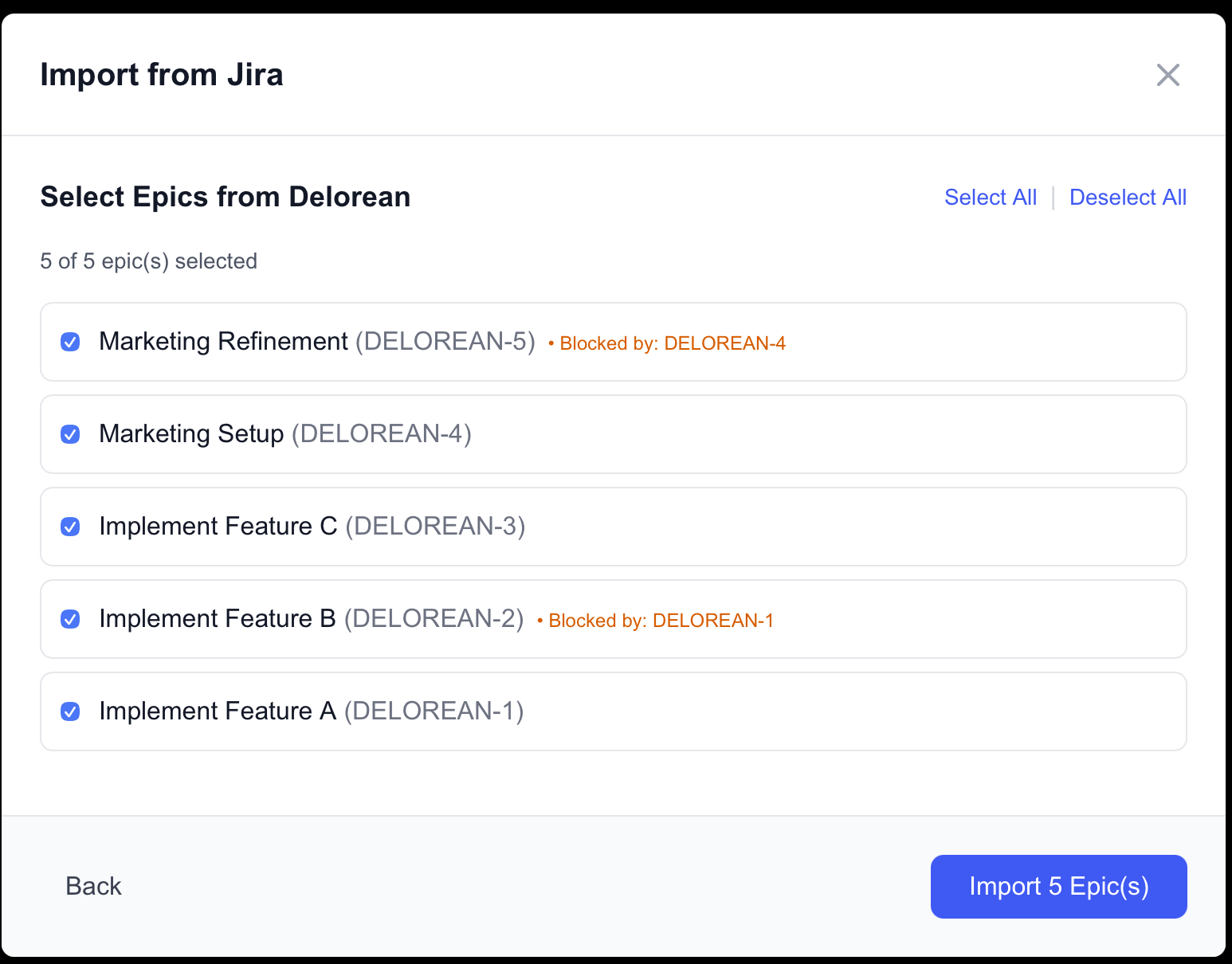
- Click Import X Epic(s).
Farline AI generates the project definition automatically as a new project plan (your existing project plan is preserved). You can then tweak the project definition and rerun forecasts.
Exporting forecasted dates to Jira (2-Way Sync)
After running a forecast, you can export the forecasted start and end dates back to Jira to keep your execution tool in sync with your plans. This completes the 2-way sync workflow.
What gets exported
When you export a forecast scenario to Jira, Farline AI updates:
- Start date - Uses the mapped start date field from your import (or auto-detects common start date fields)
- End date (Due Date) - Updates Jira's built-in
duedatefield - Size (optional) - If you mapped a size/story points field during import, that field is also updated with forecast data
Only work items with Jira-style keys (e.g. PROJ-123, DELOREAN-45) are included in the export.
How to export (step-by-step)
- Complete your project definition and run a forecast to generate scenarios.
- Navigate to the Results or Charts pane where you can see your forecast data.
- Click the Export to Jira button at the top of the pane.
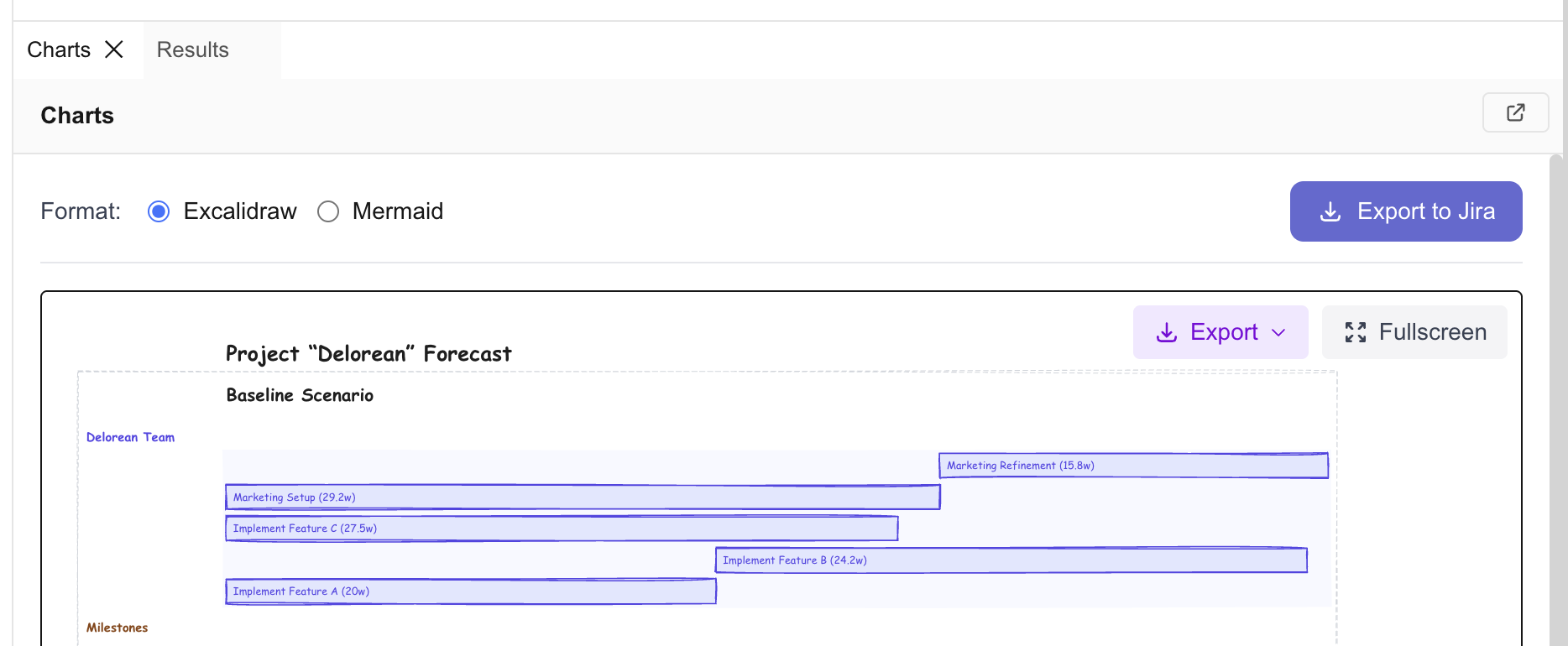
- In the export modal:
- Select a scenario from the dropdown (e.g., "Baseline Scenario", "Bigger Team")
- Review the preview table showing each epic key with its forecasted start and end dates
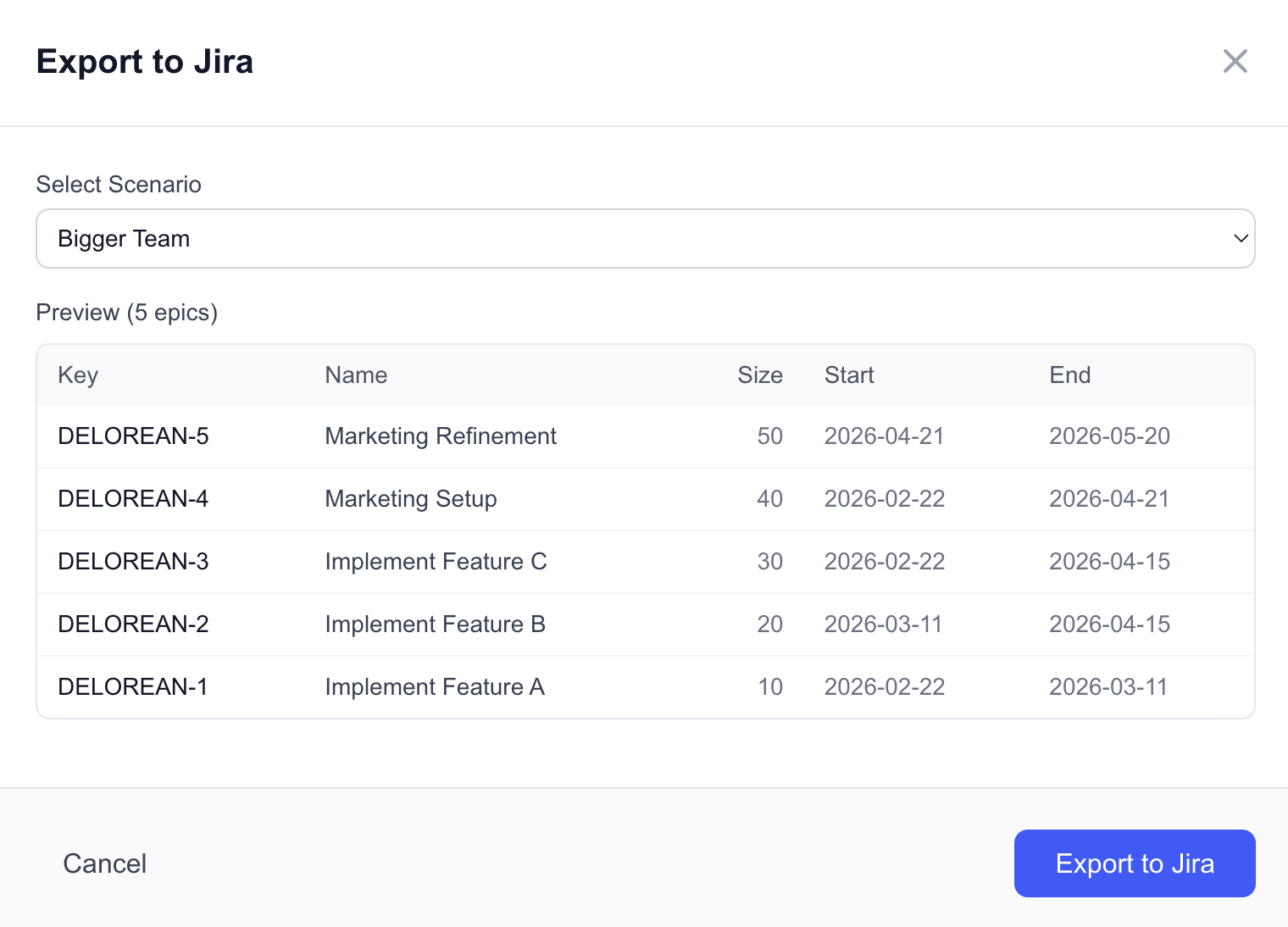
- Click Export to Jira and confirm in the confirmation dialog.
- Farline AI will update each epic in batches (10 at a time with rate limiting to respect Jira API limits).
- You'll see a success message when the export completes, or error details if any epics failed to update.
Field mapping and re-authorization
Field mapping: The export uses the same field mappings you configured during import. If you mapped a "Start Date" field, that field will be updated. If you mapped a "Size" field, size values will be written back to Jira.
Re-authorization: Exporting requires write permissions to Jira. If you connected Jira before this feature was added (before Feb 2026), you may need to re-authorize:
- Go to
Menu>Import>From Jira - Click Connect to Jira again
- Grant the additional
write:jira-workpermission when prompted
After re-authorization, the export feature will work seamlessly.
Rate limiting and large exports
Farline AI exports in batches of 10 epics with a 100ms delay between batches to avoid hitting Jira API rate limits. For large projects with 50+ epics, the export may take 10-15 seconds. You'll see progress feedback in the modal.
Important notes
Import
- Only dependencies from Jira Blocks link types are imported.
- After import, review the
sizefield for each work item to match your team's estimation approach. - Importing always creates a new project — your existing work is preserved.
Export
- Export updates Jira with forecasted start dates, due dates, and optionally size values.
- Only work items with valid Jira epic keys are exported (e.g.,
PROJ-123). - Field mappings from import are reused for export—no need to reconfigure.
- Exports are rate-limited (10 epics per batch) to respect Jira API constraints.
2-Way Sync Workflow
- Import epics from Jira with field mapping
- Plan scenarios in Farline AI
- Forecast to generate timelines
- Export forecasted dates back to Jira
This keeps your strategic planning (Farline AI) and execution tracking (Jira) in sync without manual data entry.
Related articles
- Exporting and Importing Sessions
- Project Definition Structure
Last updated: 2026-02-23