Guided Examples
Guided examples walk you through building a complete project using the AI project builder, step by step. They are the fastest way to see how Farline AI works and to produce a usable project plan.
How It Works
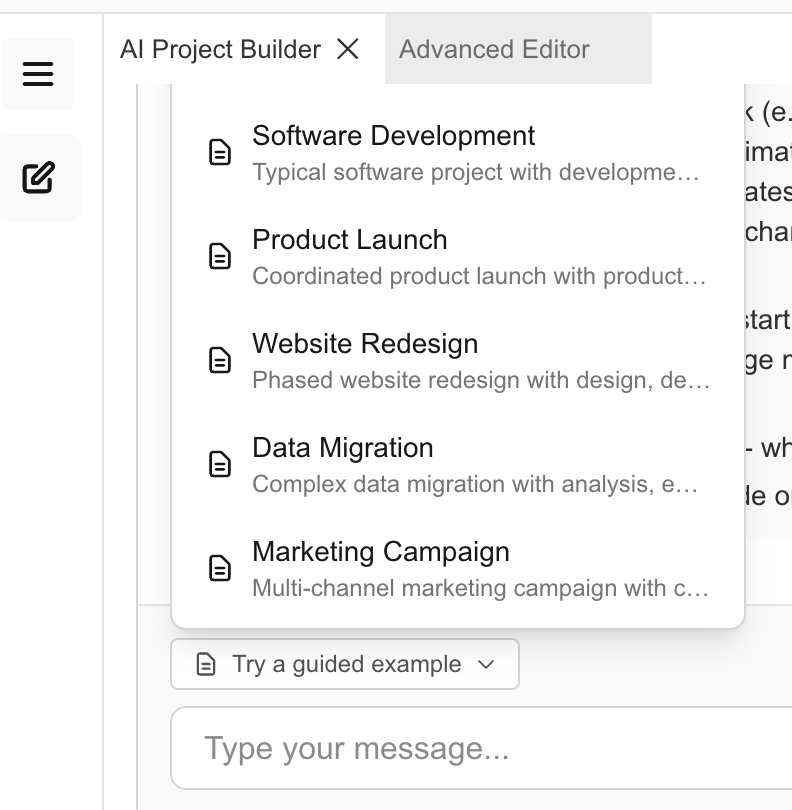
When you start a new chat with no project loaded, you'll see a "Try a guided example" button above the message input. Clicking it opens a dropdown of example templates. Each template is a sequence of pre-written messages that the AI responds to one at a time, building up a full project with workstreams, work items, dependencies, and milestones.
Unlike the editor templates which load a complete project definition at once, guided examples let you watch each step of the conversation unfold so you can learn how to structure your own requests.
Starting a Guided Example
- Open Farline AI and make sure the chat is on a fresh conversation (no messages sent yet)
- Click "Try a guided example" below the chat
- Choose a template from the dropdown
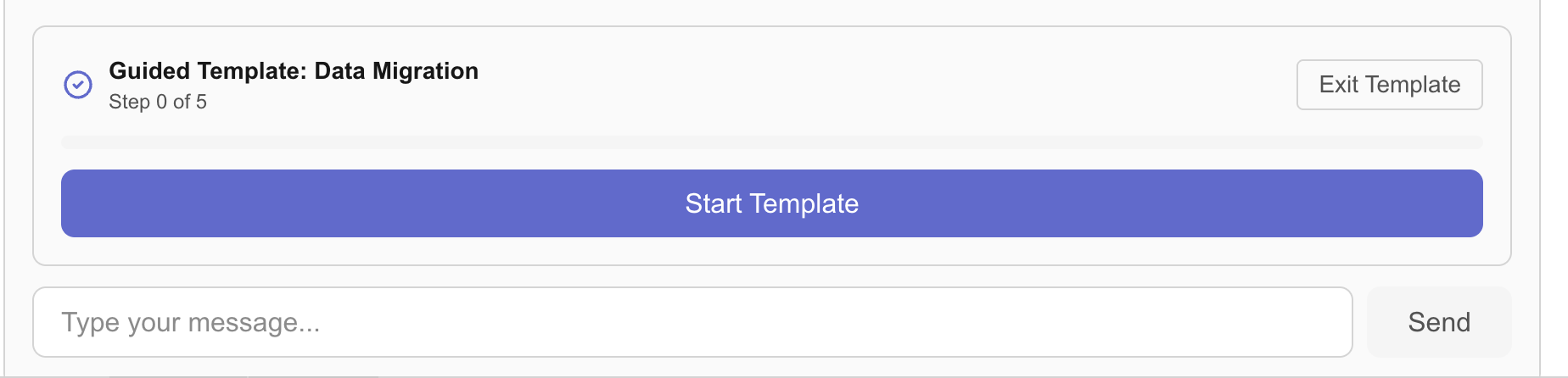
After selecting a template, a banner appears showing the template name, a progress bar, and a Start Template button.
Walking Through the Steps
Click Start Template to send the first message. The AI will respond, and once the response finishes, the banner updates with a Next Step button. Click it to send each subsequent message.
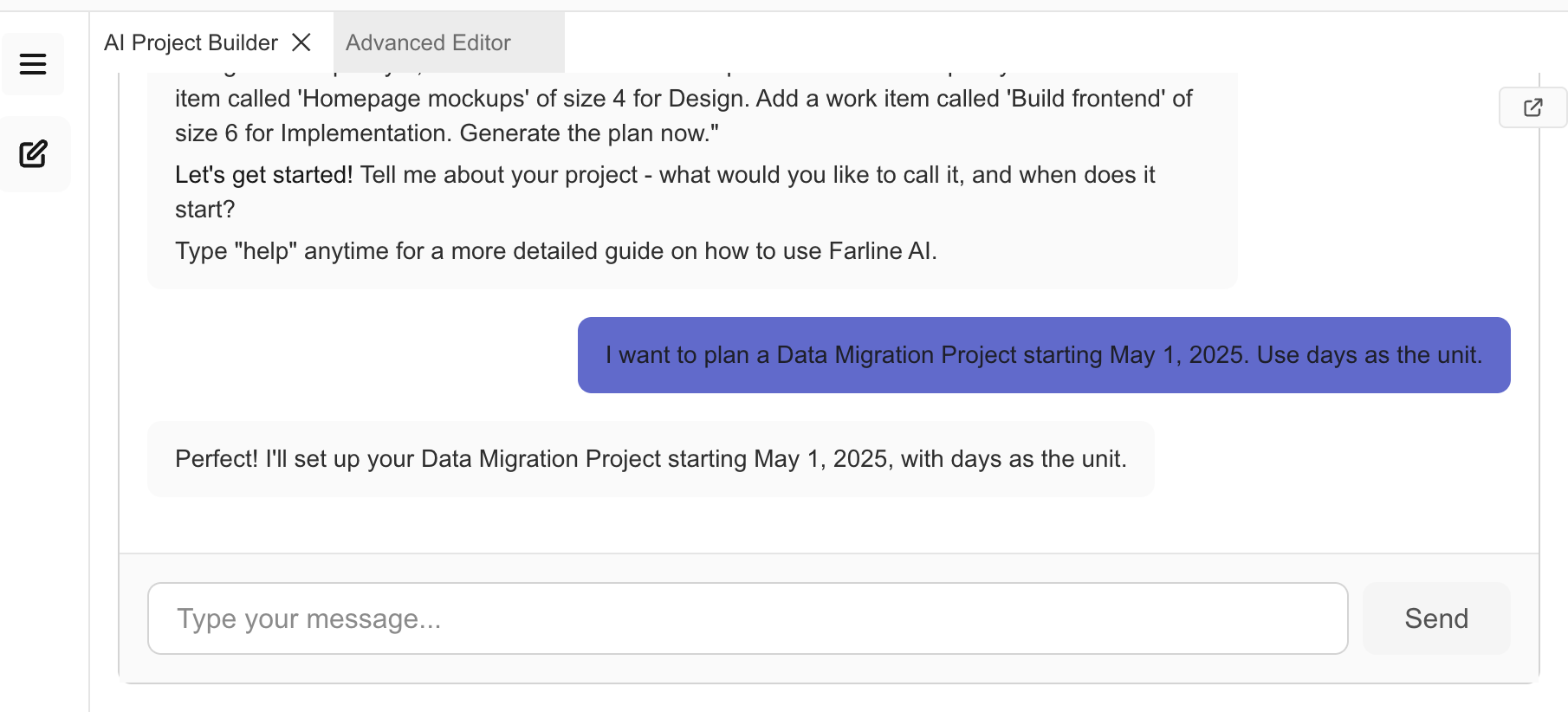
Each step builds on the previous one:
- Project setup -- names the project and sets the time unit
- Workstreams -- adds teams with capacity values
- Work items -- adds tasks with sizes, sequences, and dependencies
- Milestones and generation -- defines target dates and triggers the forecast
You control the pace. There is no automatic timer -- you advance each step manually by clicking Next Step.
Available Templates
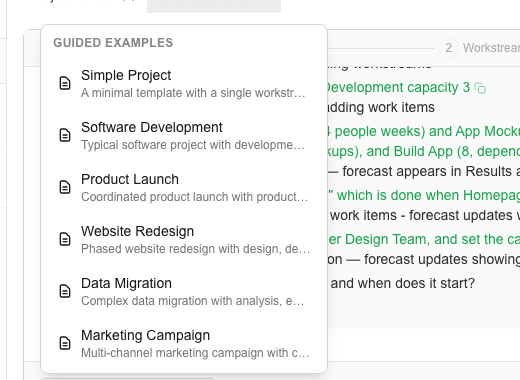
| Template | Steps | What It Builds |
|---|---|---|
| Simple Project | 4 | 1 workstream, 3 tasks, 1 milestone |
| Software Development | 5 | 2 workstreams (Dev + Marketing), 5 tasks, 2 milestones |
| Product Launch | 5 | 3 workstreams, 8 tasks, 3 milestones |
| Website Redesign | 5 | 3 workstreams, 10 tasks, 3 milestones |
| Data Migration | 5 | 3 workstreams, 10 tasks, 3 milestones |
| Marketing Campaign | 5 | 3 workstreams, 11 tasks, 4 milestones |
During a Guided Example
While a template is active:
- You can type your own messages at any time using the normal input field. The template will pick up where it left off when you click Next Step again.
- You can exit by clicking Exit Template in the banner. Your progress so far is kept -- any project data already created remains.
- If a step fails (network error, rate limit), the step does not advance. You can retry by clicking Next Step again.
After Completion
When all steps are finished, the banner shows a completion message. Your project is fully built with charts, forecasts, and project definition all populated. From here you can:
- Continue chatting to refine the project (adding scenarios, adjusting capacity, etc.)
- Switch to the project definition editor to make direct edits
- The completion banner dismisses automatically when you send your next message
Tips
- Start with "Simple Project" if you're new to Farline AI. It has fewer steps and is easier to follow.
- Watch the project definition editor as each step runs. You'll see the project definition build up in real time.
- Read each AI response to understand what the AI did with your instruction. This teaches you how to phrase your own requests later.
Related Articles
- Using the AI Project Builder -- Full guide to the AI project builder
- Advanced Editor Templates -- Editor templates (loads a complete project definition)
- Quick Start Guide -- 5-minute getting started guide
Last updated: 2026-01-31