Creating Your First Project Plan
Ready to plan your first project plan with Farline AI? This step-by-step guide will walk you through creating a project plan using the AI Project Builder.
Before You Start
Make sure you:
- Have signed in to Farline AI
- Have a project plan in mind (even a simple one works great for learning)
- Know approximately how many people are on your team
- Have a rough idea of the work that needs to be done
Step 1: Start a New Project Plan
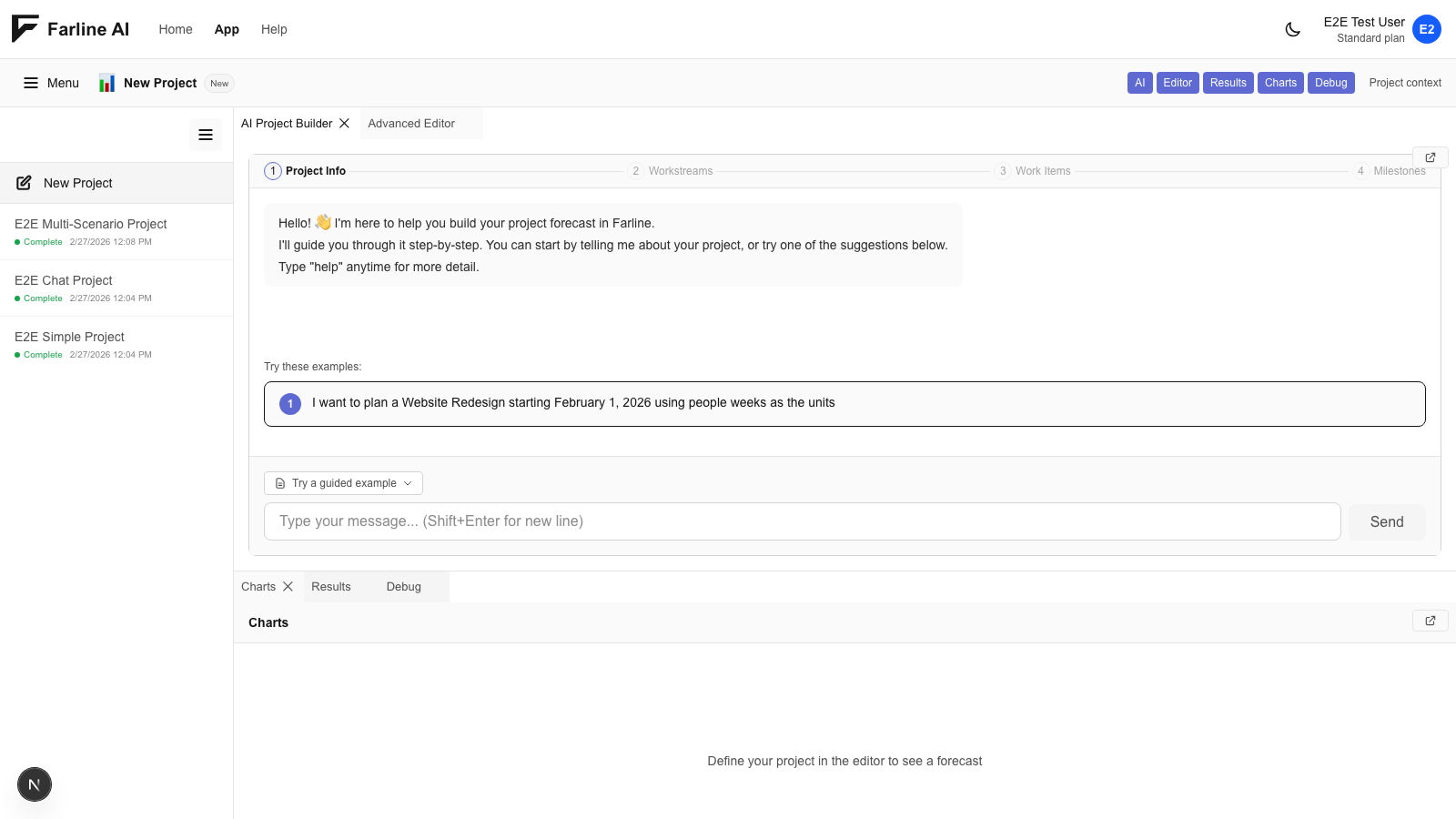
When you first sign in, Farline AI opens with a fresh project plan and chat interface ready to go.
If you've already created project plans:
- Click the project dropdown in the top navigation
- Select New Project Plan
- The chat interface will clear and you're ready to start
Step 2: Describe Your Project Plan
The AI project builder will guide you through creating your project plan. Simply describe what you're working on in natural language.
Example conversation:
You: "I'm planning a mobile app development project"
AI: "Great! Let's build your project plan. What should we call this project?"
You: "Let's call it Mobile App Launch"
AI: "Perfect! How long do you expect this project to take, or when do you need it completed?"
You: "We have 12 weeks"
AI: "Got it. Now let's define your workstreams. These are the teams or groups working on the project. For example, you might have Frontend, Backend, Design, QA teams."
Step 3: Define Workstreams
Tell the AI about your teams and their capacity.
Example:
You: "We have three teams: Design (2 people), Development (5 people), and QA (2 people)"
AI: "Excellent! I'll create three workstreams with those capacities. Now, what work needs to be done in each workstream?"
Step 4: Add Work Items
Describe the major pieces of work (features, tasks, epics) for each workstream.
Example:
You: "Design needs to create UI mockups and design system. Development needs to build the app features and integrate APIs. QA needs to write test plans and run testing."
AI: "Perfect! I'll break that down into work items with estimated sizes. Do any of these work items depend on others? For example, does Development need to wait for Design to finish mockups?"
Step 5: Add Dependencies
Tell the AI which work items must happen before others.
Example:
You: "Yes, Development should wait for UI mockups to be done. And QA should wait for features to be built."
AI: "Got it! I've added those dependencies. Let me generate your project plan..."
Step 6: Review Your Project
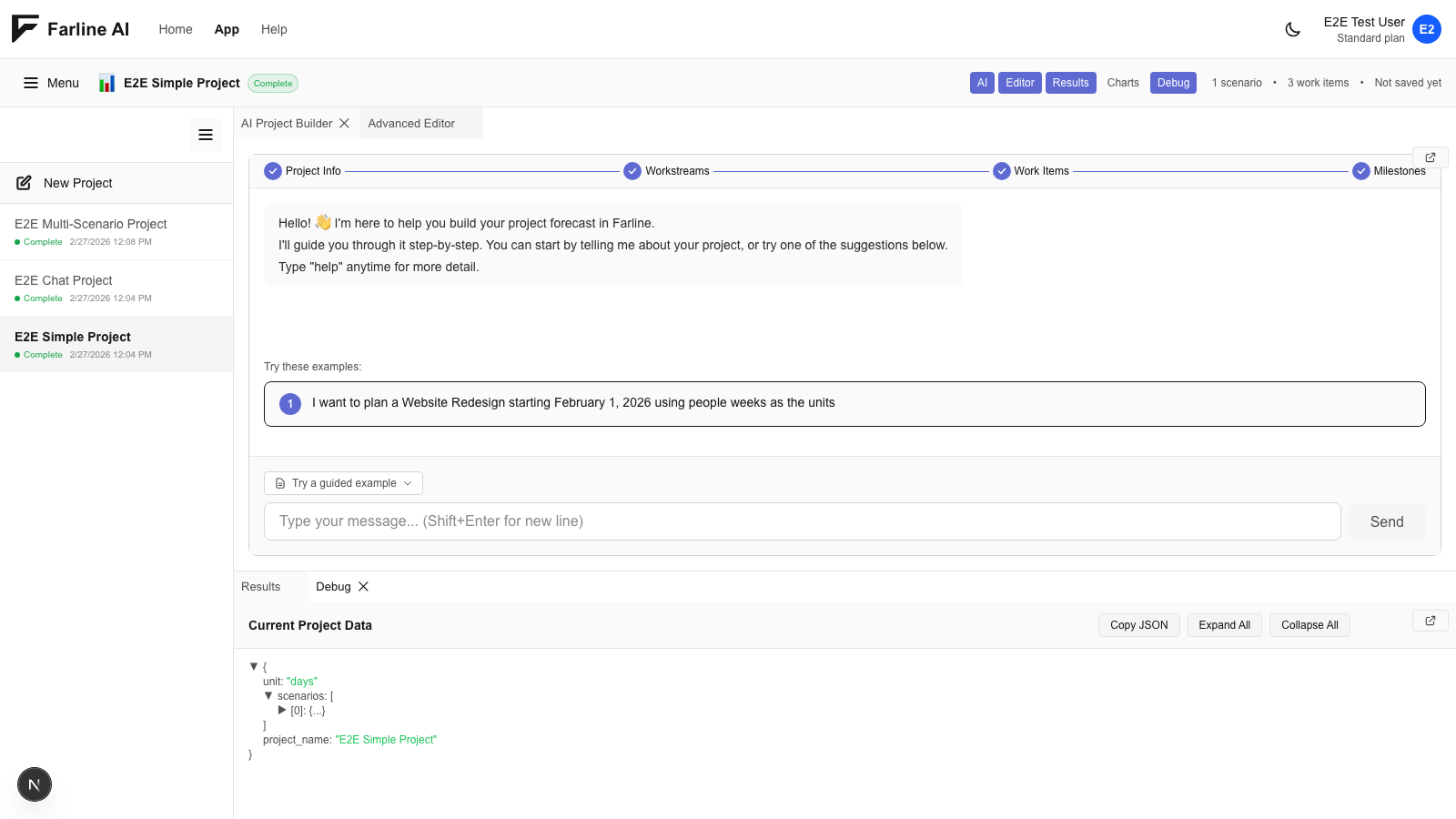
The AI will generate a project definition and a forecast:
What you'll see:
- Advanced Editor: Your project definition in text format
- Charts: Visual timeline showing when work items will happen
- Results: When the project will complete and key milestones, with a high level analysis of different scenarios
Review the output:
- Check if team sizes are correct
- Verify work items make sense
- Look at the timeline and see if it's realistic
Step 7: Refine and Iterate
Your project isn't locked in! You can continue chatting with the AI to make changes:
Example refinements:
You: "Can you add a work item for App Store submission?"
You: "Make the Development team 6 people instead of 5"
You: "What if we cut the API integration work? How much time would we save?"
The AI will update your project plan in real-time.
Step 8: Save Your Project
Farline AI automatically saves your project as you work. You can:
- Switch between projects using the dropdown
- Share the project definition with your team
Tips for Success
Start simple: Your first project can be very basic. You can always add complexity later.
Use natural language: Don't worry about technical jargon. Describe your project as you would to a colleague.
Iterate quickly: If something doesn't look right, just ask the AI to change it. There's no penalty for experimenting.
Think in teams: Organize work by who does it (Design team, Backend team, etc.) rather than by feature.
Be realistic about capacity: If your team of 3 can complete about 10 story points per week, use that as your capacity.
Don't over-specify: You don't need to list every tiny task. Focus on major work items (features, epics, big chunks of work).
Common Questions
How detailed should work items be? Think "features" or "epics" rather than individual tasks. For example, "User Authentication" rather than "Create login form, add password validation, write tests..."
What if I don't know the exact size of work items? That's fine! Give rough estimates. The AI will help you adjust sizes as you learn more.
Can I edit the project definition directly? Absolutely! If you're comfortable with YAML, you can edit the project definition directly in the editor. Changes will update the charts immediately.
What if my project plan looks wrong? Keep chatting with the AI to refine it. Say things like "The timeline looks too long" or "Can you make the QA team bigger?"
Next Steps
Once you've created your first project:
- Try creating scenarios to explore "what if" questions
- Learn about work items and dependencies in detail
- Explore the chart visualizations
- Share your project with stakeholders
Related Articles
- Getting Started with Farline AI - Overview and basics
- Using the AI Project Builder - Deep dive on the AI project builder
- Using the Advanced Editor - Learn the project definition format
- Working with Work Items - Master work items and dependencies
- Quick Start: 5-Minute Guide - Create a project in 5 minutes
Last updated: 2025-12-19