Using the AI Project Builder
Farline AI's AI Project Builder helps you create and modify projects using natural language. No YAML knowledge required!
How It Works
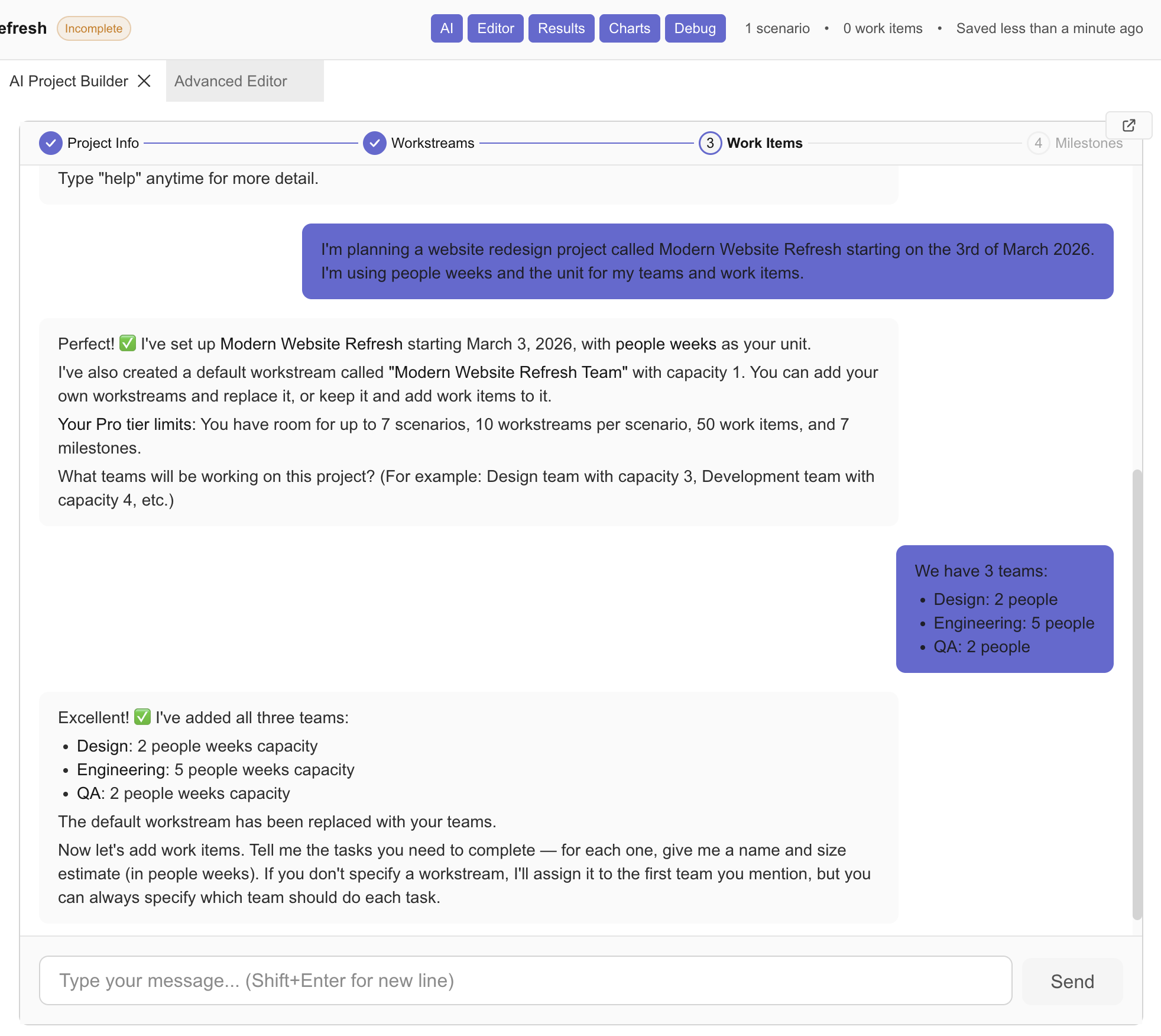
The AI Project Builder guides you through a structured conversation to build your project step by step:
- Project Info — Name, start date, and units
- Workstreams — Your teams and their capacity
- Work Items — Tasks with sizes assigned to teams
- Milestones — Key dates and deliverables
Tracking Your Progress
As you chat, a progress indicator at the top of the AI Project Builder shows how close your plan is to being Shovel Ready.
- Percentage (0–100%): Shows overall completeness based on project name, start date, workstreams, and work items.
- Stage Stepper: Tracks the 4 main stages (Project Info, Workstreams, Work Items, Milestones).
- Shovel Ready Badge: Appears when your plan has enough information (name, start date, 1+ workstream, 1+ work item) to generate a valid forecast.
- Remaining Items: Click the percentage to see a checklist of what's still needed to reach Shovel Ready status.
Creating a Project
Describe your project in plain English. Here are templates you can copy and paste into the chat:
Set up the project:
I'm planning a website redesign project called Modern Website Refresh starting on the 3rd of March 2026.
I'm using people weeks as the unit for my teams and work items.
Define your teams:
We have 3 teams:
- Design: 2 people
- Engineering: 5 people
- QA: 2 people
Add work items with sizes:
The work items for each team are:
Design: Create new design system - size 6, Design key pages - size 10
Engineering: Update frontend components - size 12, Rebuild navigation - size 4, Integrate CMS - size 2
QA: Write test plan - size 1, Run regression testing - size 3
Set up dependencies:
Engineering should wait for the design system to be complete.
Run regression testing should wait for all engineering work to finish.
Update frontend components can only start after rebuild navigation.
Add milestones:
Create a milestone called "CMS Ready" when Integrate CMS is complete.
Create a milestone called "Ready to Launch" when Run Regression Testing is complete.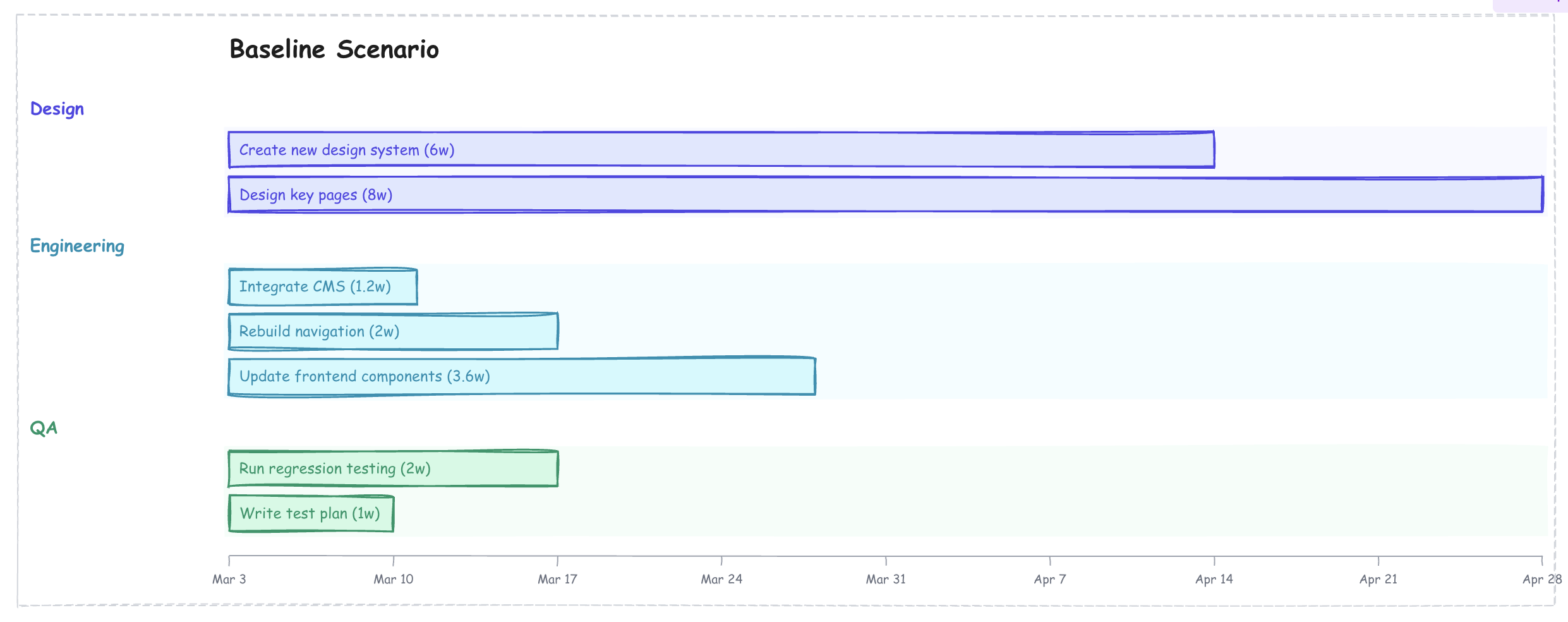
For a complete walkthrough with screenshots, see the Quick Start: 5-Minute Guide.
Creating "What If" Scenarios
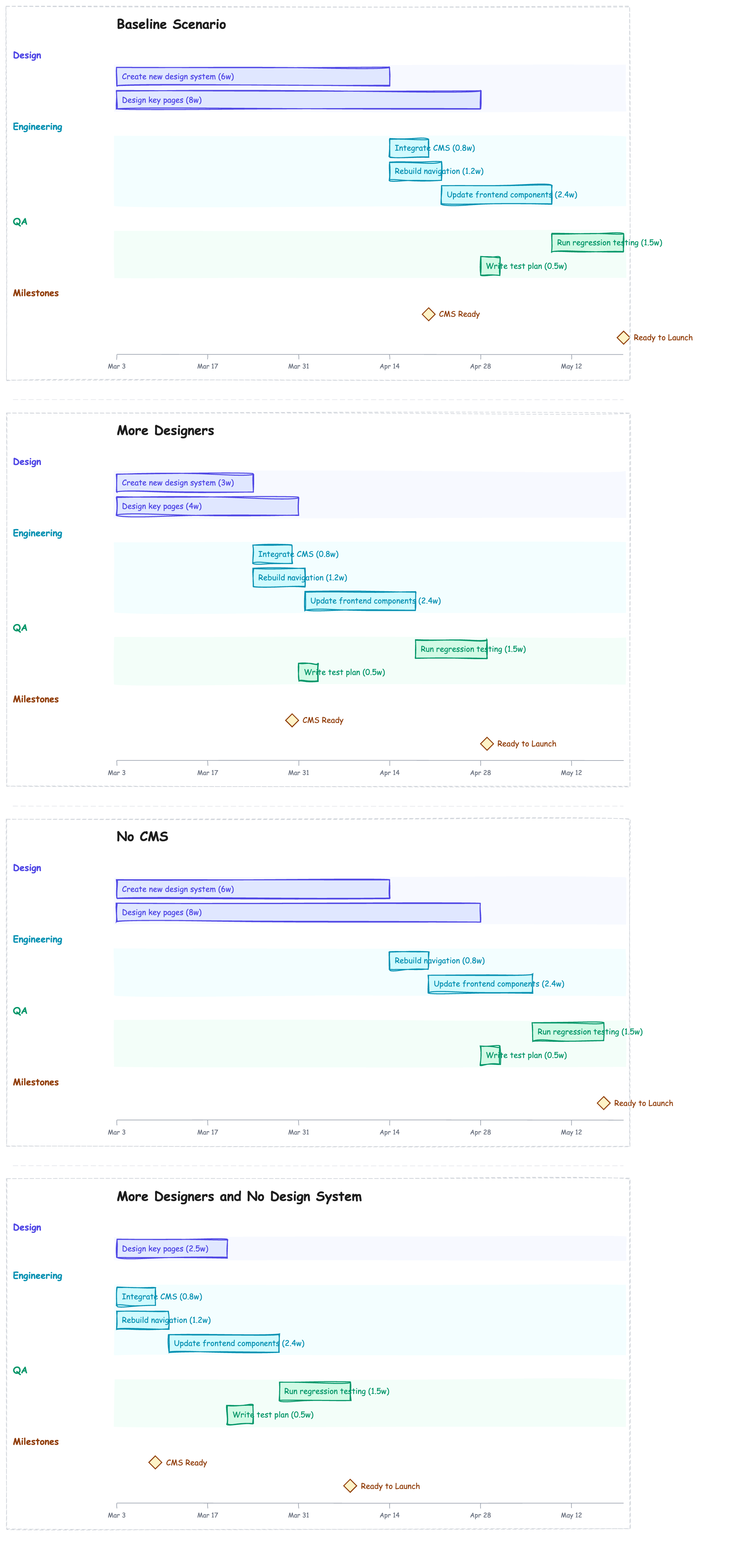
One of Farline AI's most powerful features is comparing alternative plans side by side.
Duplicate and modify:
Duplicate the baseline scenario, call it "More Designers".
Add 2 more people to the Design team of that scenario.
Remove scope:
Duplicate the baseline scenario, call it "No CMS".
Remove the CMS Integration work item and CMS Ready Milestone from that scenario.
Combine changes:
Duplicate the "More Designers" scenario, call it "More Designers and No Design System".
Remove Create New Design System work item from the last scenario.
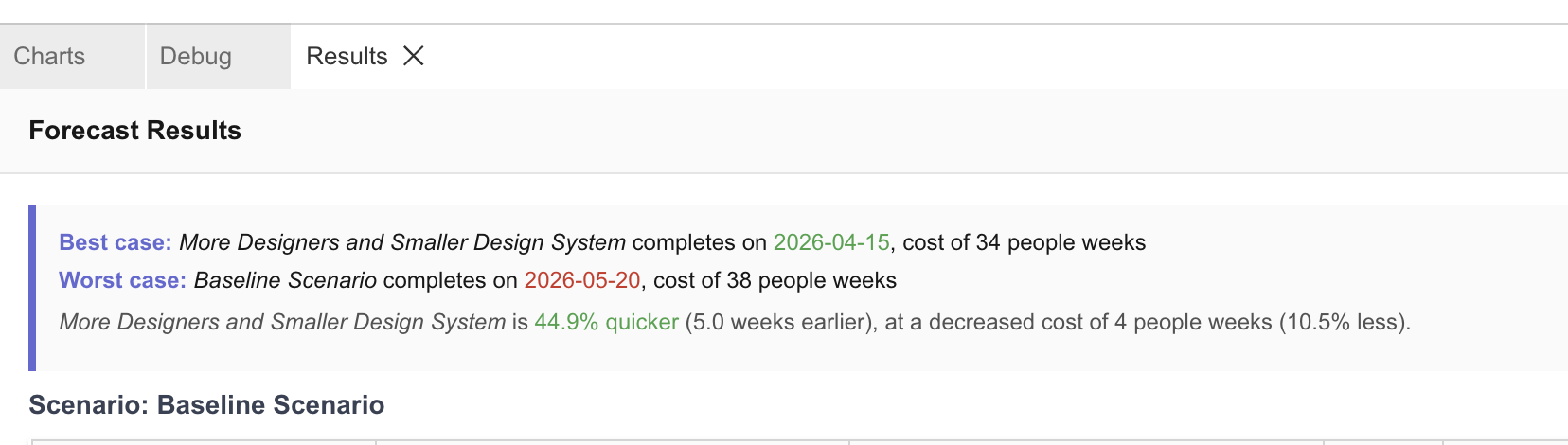
Each scenario runs independently, so you can compare completion dates, costs, and resource utilisation in the Results tab.
Tips for Better Results
Be Specific About Scope
Good: "Add a work item for building the checkout flow, including payment integration and order confirmation — size 8"
Less clear: "Add checkout stuff"
Include Sizes
Work item sizes determine how long tasks take relative to team capacity. Always include a size when adding work items.
Good: "Add work item API Integration - size 6 to the Engineering workstream"
Less clear: "Add an API integration task"
Mention Dependencies Clearly
Good: "The deployment work item depends on both testing and documentation being complete"
Less clear: "Deployment needs some other things done first"
Ask for Explanations
The AI can explain its decisions:
- "Why is the project completion date so far out?"
- "What's the critical path?"
- "Which work items can run in parallel?"
Common Commands
Creating and Modifying
- "Create a new project called [name]"
- "Add a workstream called [name] with capacity [number]"
- "Add a work item for [description] - size [number]"
- "Set the size of [work item] to [number]"
- "Make [item A] depend on [item B]"
- "Remove the [work item name]"
Scenarios
- "Duplicate the baseline scenario, call it [name]"
- "In the [scenario name], change the capacity of [team] to [number]"
- "Remove scenario 3"
Analysis
- "When will this project finish?"
- "What's the critical path?"
- "What if we added more people to [workstream]?"
Switching Between Chat and Editor
You can switch between the AI Project Builder and the Advanced Editor at any time using Cmd+. (Ctrl+. on Windows/Linux), or by clicking the tab headers.
A common workflow:
- Use the chat to create the basic project structure
- Switch to the Advanced Editor for fine-tuning sizes or dependencies
- Switch back to chat to ask "what if" questions
Changes in either view are reflected in the other immediately.
Limitations
The AI Project Builder works best for:
- ✅ Creating project structures
- ✅ Adding and modifying work items
- ✅ Setting up dependencies
- ✅ Generating and comparing scenarios
- ✅ Answering planning questions
The AI cannot:
- ❌ Execute the project for you
- ❌ Make business decisions (which features to build)
- ❌ Access external data (unless you import from Jira)
Related Articles
- Quick Start: 5-Minute Guide - Complete walkthrough with screenshots
- Using the Advanced Editor - Learn to read and edit project definitions
- Guided Examples - Try pre-built example projects
- Importing From Jira - Import existing work from Jira
Last updated: 2026-02-11