Generating Optimised Scenarios
The Generate Optimised Scenario feature uses AI to analyse your plan and propose a coordinated set of changes to hit a specific goal — faster delivery, lower cost, or a balanced trade-off between the two. Unlike quick fixes (which apply one change at a time), optimisation proposes multiple changes together and lets you review, select, and apply them in one step.
Opening the Goal Picker
From the AI Insights tab, scroll to the Recommendations section and click Generate Optimised Scenario ▸.
A goal picker appears with three options:
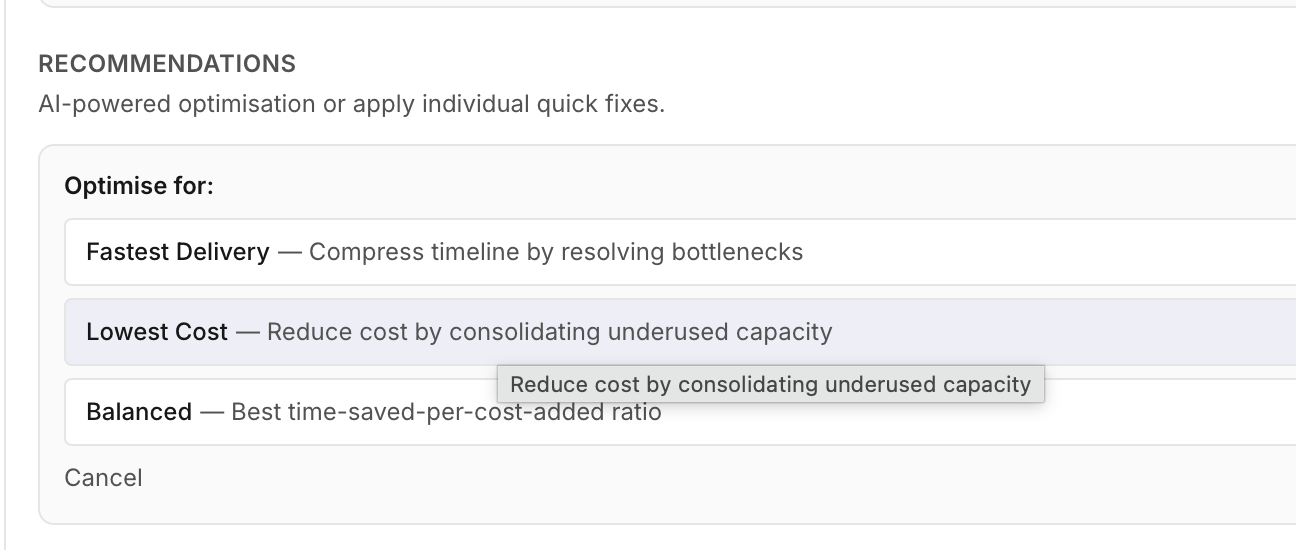
| Goal | What it optimises |
|---|---|
| Fastest Delivery | Compresses your timeline by resolving bottlenecks and critical path constraints |
| Lowest Cost | Reduces spend by adjusting capacity on overloaded workstreams (requires unit costs to be configured) |
| Balanced | Finds the best trade-off — maximum time saved per dollar added |
You can also trigger this from the AI chat:
- "Optimise this for fastest delivery"
- "Make the plan cheaper"
- "Find a balanced optimisation"
Reviewing Proposals
After selecting a goal, the AI analyses your plan — you'll see a brief "Optimising plan…" indicator while it works.

Once complete, a review panel appears with 2–5 proposed changes.
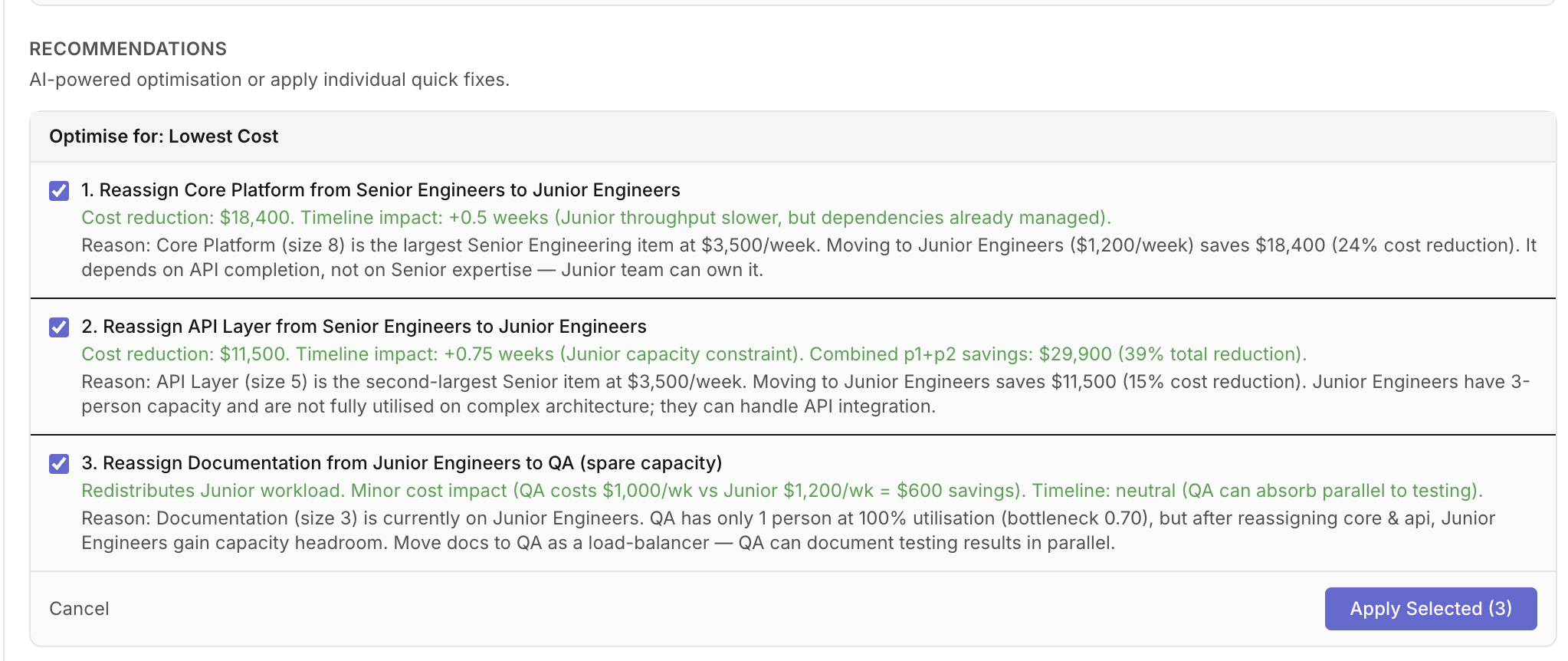
Each proposal shows:
- What changes — e.g. "Increase Engineering capacity 2 → 3"
- Why — the specific metric driving the suggestion, e.g. "bottleneck score 0.91"
- Expected impact — e.g. "Saves ~2 weeks on critical path"
An Expected cumulative impact line at the bottom summarises the combined effect of all selected proposals.
Use the checkboxes to select which proposals you want to apply. You don't have to accept all of them.
Applying Changes
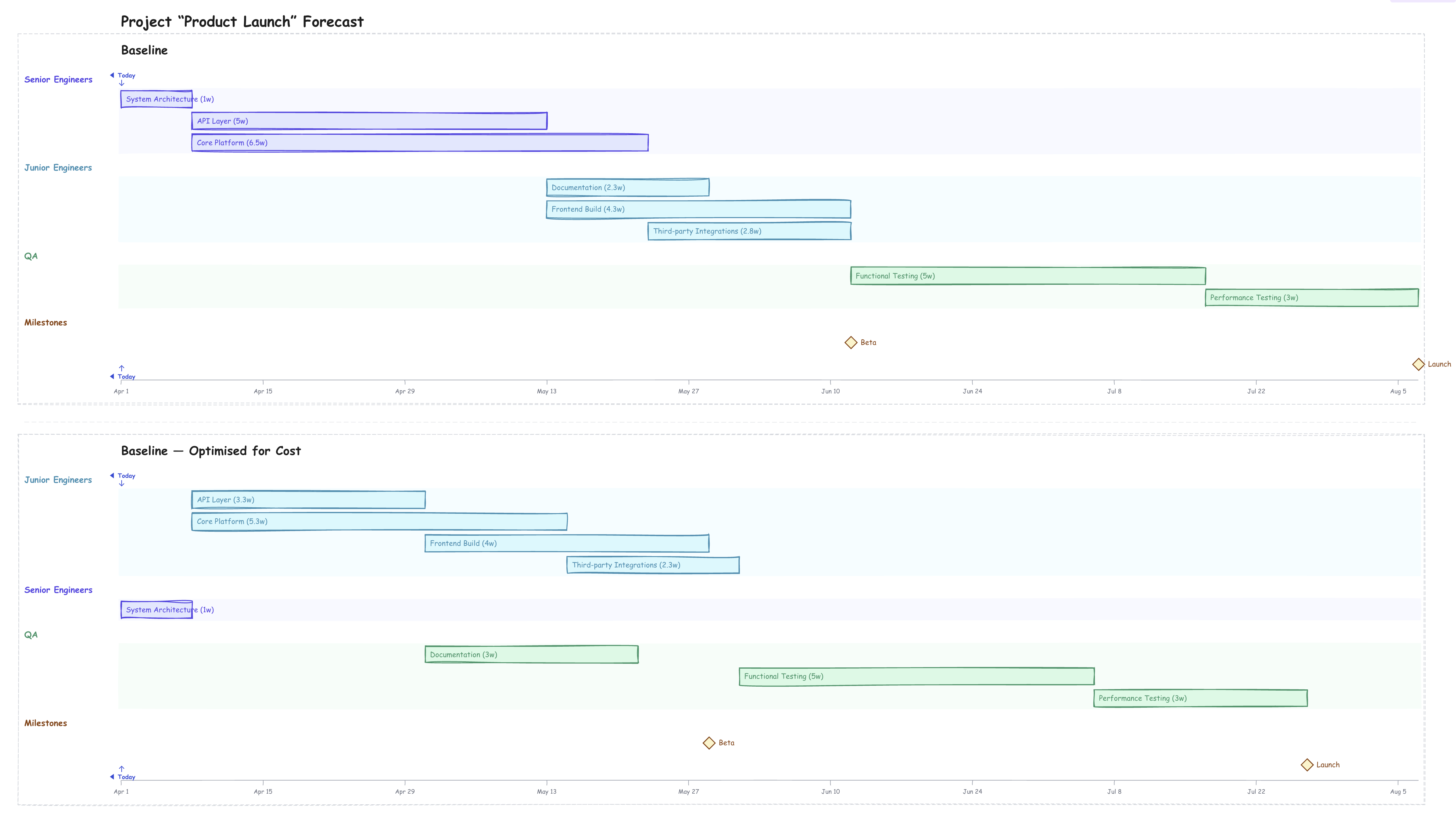
Click Apply Selected to create a new scenario with your chosen changes. The new scenario appears in the Charts tab alongside your original so you can compare timelines directly.
Click Cancel to dismiss without making any changes.
Cost-Optimised Scenarios
When unit costs are configured on your project, the Lowest Cost goal becomes available. The AI looks for workstreams where capacity can be reduced without extending the schedule beyond acceptable limits, or where work can be resequenced to reduce expensive parallel staffing.
The resulting scenario typically shows:
- Lower total cost in the Results tab
- Slightly longer duration (the cost-time trade-off)
- Reduced capacity on previously over-staffed workstreams
Note: Generate Optimised Scenario is a Pro+ feature. Free plan users can see the button but cannot use it.
Related Articles
- AI Insights - Plan health, bottlenecks, and quick fixes
- Budgeting and Cost Analysis - Configure unit costs and budgets
- Understanding the Forecast Results - Reading the Results tab
Last updated: 2026-03-16